Best AI Video Tools for Beginners

Picking your first AI video tool is confusing. You’re worried about paying for features you won’t use, wasting time learning complicated software, or choosing wrong and having to switch later. Good news: beginner-friendly AI video tools exist, and this guide will help you find one that fits.
What Makes a Video Tool Beginner-Friendly?
Not all video platforms work the same way. What a professional editor needs will overwhelm someone starting out.
Good beginner tools share a few things:
Simple interface — Drag-and-drop controls and clear labels. You shouldn’t need to hunt for basic functions.
Templates — Starting from scratch is hard. Templates give you a foundation to build on.
Automation — AI handles captions, scene detection, and smart cropping so you don’t have to.
Quick start — You should make your first video in under an hour, not after days of tutorials.
Clear pricing — No surprise charges.
Why Traditional Editing Software Is Overkill
Adobe Premiere Pro and Final Cut Pro are built for people who edit video full-time. As a beginner, you’ll spend more time learning the interface than making anything useful.
Here’s what usually happens: you download professional software, open it, and face dozens of panels, hundreds of menus, and terms you’ve never seen. What’s a keyframe? How do you render? What’s the difference between a cut and a transition?
AI tools skip this. They figure out what you want and automate the technical parts. Add captions? One click. Remove background noise? Automatic. Resize for different platforms? Done.
Top AI Video Tools for Beginners in 2025
1. Runway ML — Best for Creative Experiments
Runway ML is the platform for creators who want cutting-edge AI features without complexity. The interface feels like a modern web app — clean, quick, responsive.
What it does:
- Text-to-video that creates short clips from descriptions
- Green screen removal without a green screen
- Tools that remove objects, people, or backgrounds automatically
- Frame interpolation for smooth slow-motion
Pricing: Free tier with limited credits; paid plans start at $12/month
Good for: Creators experimenting with AI-generated visuals and effects
Learning curve: Low to moderate. Basic features are easy; advanced ones take exploration.
2. Descript — Best for Podcasts and Interviews
Descript lets you edit video by editing text. You edit the transcript, and the video changes. Delete a sentence? That section disappears from the video.
What it does:
- Edit video by editing text transcripts
- AI voices for fixing mistakes without re-recording
- Automatic filler word removal
- Multi-track editing
- Built-in screen recording
Pricing: Free plan available; Creator at $12/month; Pro at $24/month
Good for: Podcasters, interviewers, educators, talking-head content
Learning curve: Very low. If you can edit a Word doc, you can edit video here.
3. Pictory — Best for Social Media
Pictory turns long content into short social videos. It’s built for repurposing blog posts, articles, or webinars into clips for Instagram, TikTok, or YouTube Shorts.
What it does:
- Script-to-video with automatic scene selection
- Highlight extraction from long videos
- Large stock footage and music library
- Automatic captions with custom styles
- Brand kit for consistent styling
Pricing: Standard at $23/month; Premium at $47/month
Good for: Marketers, bloggers, social media managers creating content at scale
Learning curve: Very low. The platform walks you through each step.
4. Synthesia — Best for Professional Presentations
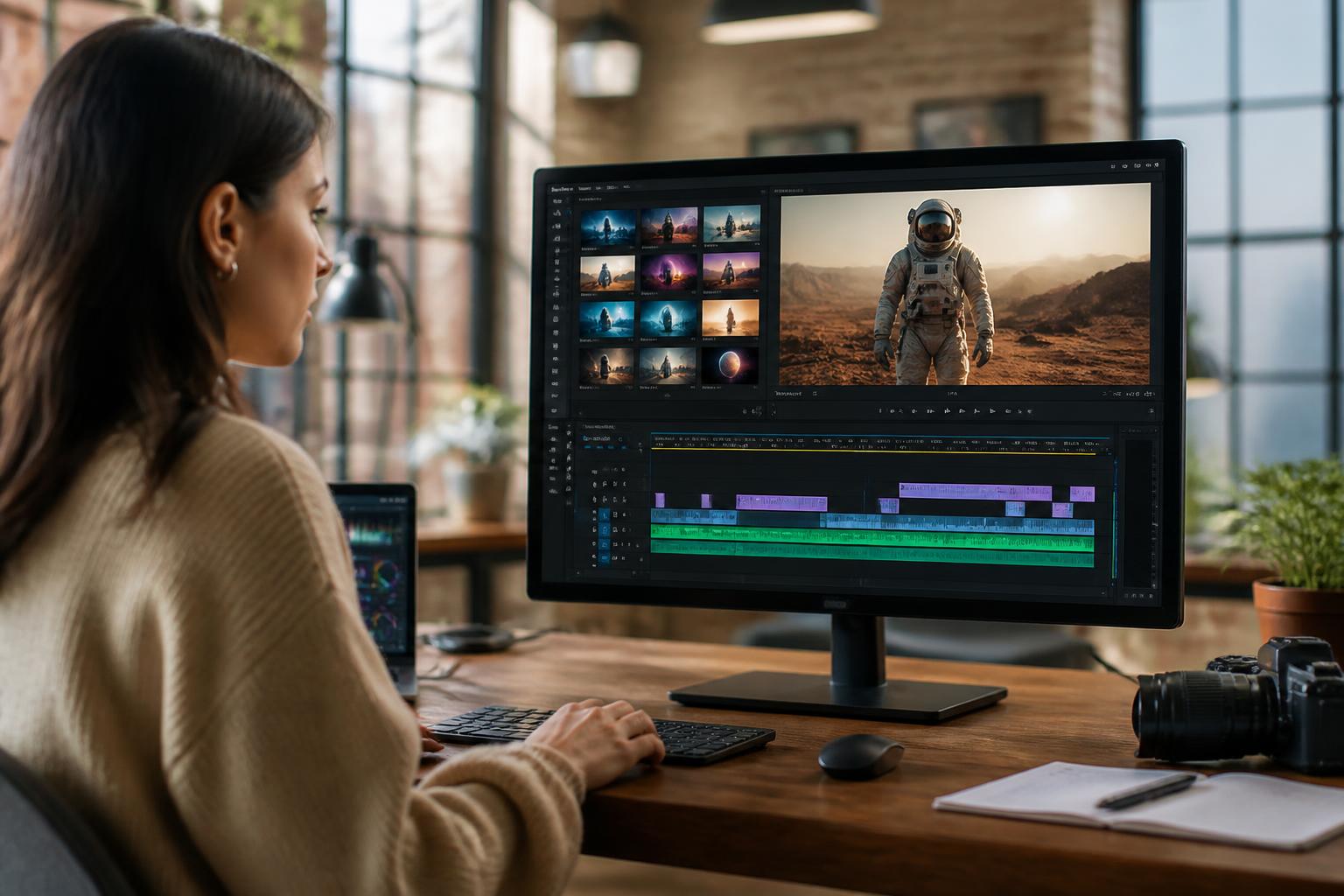
Synthesia uses AI avatars instead of requiring you on camera. Type your script, pick an avatar, and the AI generates a video of that avatar speaking your words in dozens of languages.
What it does:
- 150+ AI avatars
- 120+ languages and accents
- No camera or microphone needed
- Custom avatar creation on higher tiers
- Professional templates for corporate use
Pricing: Starter at $22/month; Creator at $67/month
Good for: Corporate training, e-learning, product demos, camera-shy people
Learning curve: Low. Built for non-technical users.
5. InVideo — Best All-Around Value
InVideo has the most features at a competitive price. True all-in-one platform with thousands of templates, a massive media library, and AI tools that handle tedious work.
What it does:
- 5,000+ templates
- Text-to-video conversion
- Smart scene recommendations
- Voice-over recording and text-to-speech
- Direct publishing to social platforms
Pricing: Free plan available; Business at $15/month; Unlimited at $30/month
Good for: Small businesses, YouTubers, marketers who need versatility
Learning curve: Low to moderate. More features mean slightly more complexity, but the interface stays user-friendly.
How to Pick the Right Tool
With so many options, here’s how to decide:
What Will You Create Most?
- Social media content — Pictory or InVideo
- Podcasts/interviews — Descript
- Corporate training — Synthesia
- Creative/experimental — Runway ML
- General variety — InVideo
What Can You Afford?
Be honest about your monthly budget. Most platforms offer free trials.
Under $15/month — InVideo or Descript basic tiers
$15-30/month — Most platforms; pick by features
$30+/month — Only if you need advanced features or high volume
How Technical Are You?
Rate yourself:
- Complete beginner — Pictory or Synthesia
- Comfortable with apps — Descript or InVideo
- Somewhat technical — Runway ML
Will Your Needs Grow?
Some platforms get expensive as you create more:
- Check per-video costs vs monthly unlimited plans
- Look at export quality limits
- Review storage caps
- Confirm you can download and keep your videos
Mistakes Beginners Make
Choosing by Features Instead of Fit
The tool with the most features isn’t always best. If you make simple social videos, paying for advanced color grading or 8K export wastes money. Match the tool to your actual needs.
Skipping the Free Trial
Every good platform offers a free trial or free tier. Use it. Create a real project to see if the workflow fits. Watch out for platforms requiring credit cards for “free” trials — legit services don’t need payment info upfront.
Ignoring Export Limits
Some free or basic tiers limit resolution (720p) or add watermarks. If you’re creating professional content, these make the “affordable” option unusable. Always check export quality before paying.
Overlooking Learning Resources
The best tools provide tutorials, templates, and community support. Before subscribing, check their knowledge base. A powerful tool without docs will frustrate you; a simpler tool with great tutorials helps you succeed faster.
Not Planning for Licensing
Most AI video tools include stock footage and music. But can you use that commercially? For client work? On YouTube? Read the licensing terms. Some “free” media is personal use only.
Your First Week
Here’s a practical roadmap:
Day 1: Setup
- Create account, complete profile
- Watch the “getting started” video
- Browse templates in your niche
- Learn the main interface
Day 2-3: Customize a Template
- Pick a simple template
- Replace text with your content
- Swap template media with your images or videos
- Try different fonts and colors
- Export your first test video
Day 4-5: Build from Scratch
- Start a project without a template
- Upload and organize media
- Add transitions
- Try text overlays and captions
- Test different aspect ratios
Day 6: Try Advanced Features
- Use AI features (auto-captions, scene detection)
- Test text-to-speech or voice-over recording
- Try the platform’s smart editing suggestions
- Experiment with effects
Day 7: Create and Publish
- Complete one full project
- Export in your desired quality
- Post to your target platform
- Get feedback
Getting Professional Results on a Budget
Use Stock Libraries Strategically
Most platforms include stock footage and music:
- Mix stock with your own content
- Use stock B-roll for transitions
- Replace generic stock as you grow
- Take advantage of trending stock for timely topics
Batch Your Work
Creating one video at a time wastes time:
- Plan multiple videos in one session
- Record all voice-overs together
- Create reusable templates for series
- Duplicate and modify instead of starting fresh
Repurpose Everything
One piece of content should generate multiple videos:
- Long video → multiple short clips
- Blog post → video summary
- Webinar → tutorial series
- Interview → quote graphics + full video
Learn Keyboard Shortcuts
Learning just five shortcuts cuts editing time in half:
- Play/Pause
- Split clip
- Delete
- Undo
- Export
What’s Coming
AI video tools are evolving fast. Expect:
More automation — Full video generation from bullet points, automatic music selection, smart editing that understands pacing.
Better avatars — Digital avatars will become hard to distinguish from real people.
Real-time collaboration — Cloud-based tools will make team editing as easy as Google Docs.
Voice cloning — Consistent voice-overs without recording each time will become standard.
Platform integration — Direct publishing with platform-specific optimization (TikTok format, Instagram captions, YouTube chapters) will happen automatically.
Make Your Decision
- List your three most common video types you’ll create in the next three months
- Set your monthly budget (be realistic)
- Try the top two platforms that match your needs with free trials
- Create one complete project on each during the trial
- Pick the one where you finished faster and enjoyed the process
The best tool is the one you’ll actually use. A slightly less powerful tool you enjoy using will get better results than a feature-rich platform that frustrates you.
Start Today
Stop researching. Pick one platform from this guide, sign up for the free trial, and finish one video by the end of this week. You’ll learn more in one project than in hours of reading.
The right tool for your current needs exists. Your first video won’t be perfect. That’s fine. What matters is starting, learning from each project, and improving.
Choose your tool, open it, and create something.
For detailed comparisons and current pricing, see https://moneysavingway.com/best-ai-video/.
—
Quick Decision:
- “I want to start fast” → Pictory
- “Podcast/interview content” → Descript
- “Lots of templates” → InVideo
- “Don’t want to be on camera” → Synthesia
- “Creative control” → Runway ML
Whatever you pick, make at least five videos before switching. Mastery comes from practice, not finding the “perfect” tool.