How to Use Budgeting Apps: A Step-by-Step Guide (2026)
This post contains affiliate links. If you buy something through these links, we might earn a commission at no extra cost to you. Read our full disclosure.
Staring at your bank balance wondering where all your money went? Budgeting apps promise to fix this, but with 38+ options available in 2026, picking the right one—and actually sticking with it—can feel overwhelming.
By the end of this guide, you’ll know how to pick a budgeting app that fits your situation, set it up correctly, and use it without abandoning it after two weeks. Whether you’re tracking expenses for the first time or replacing a system that stopped working, this walks you through the whole process.
What you need before starting:
- A smartphone (iOS or Android) or computer
- Bank account login credentials (for apps that sync automatically)
- 20-30 minutes for setup
- One clear financial goal (paying off debt, saving more, tracking spending, etc.)
Estimated time: 30-45 minutes for setup, 5-10 minutes daily after that
—
Step 1: Identify Your Primary Budgeting Goal
Before downloading anything, figure out what you actually want to accomplish. Different apps are good at different things, and picking the wrong one means you’ll quit within a few weeks.
Ask yourself:
- Am I starting from scratch? → You need beginner friendly tracking
- Do I want every dollar assigned a purpose? → You need zero based budgeting
- Am I drowning in subscriptions? → You need subscription management
- Do I share finances with a partner? → You need multi user access
- Is my income irregular? → You need flexible, calendar based budgeting
One clear goal. If you have multiple, rank them—your top priority determines which app to start with.
> Note: Don’t try to solve every financial problem at once. Pick one thing for your first 90 days. You can always switch later.
—
Step 2: Compare Apps Based on Your Goal
Match your goal to the right category. I looked at 38 budgeting apps across 18 metrics in 2026. Here’s how the top options break down:
For zero based budgeting (every dollar has a job):
- EveryDollar: $17.99/month or $79.99/year — Simple interface, custom budgets
- YNAB (You Need a Budget): $14.99/month or $109/year — Goal tracking, 4.8/5 App Store rating, 34 day free trial
For tracking spending without strict categories:
- PocketGuard: $12.99/month or $74.99/year — Shows “how much you can spend,” 4.6/5 rating
- Spendee: $1.99/month to $5.99/month — Auto categorization, shared budgets
For managing subscriptions and recurring costs:
- Rocket Money: $7-$14/month — Subscription cancellation, spend insights
- Lunch Money: $50-$150/year or $10/month — Desktop optimized, recurring expense tracking
For couples managing household expenses:
- HoneyDue: Free — Joint expense management, 4.5/5 rating
- Monarch Money: $14.99/month or $99.99/year — Partner collaboration, 4.9/5 rating, 7 day free trial
For comprehensive financial management (replacing Mint):
- Monarch Money: $14.99/month or $99.99/year — Investment tracking, net worth monitoring
- Origin: Paid subscription with flat pricing — AI advisor, real time syncing with US banks and brokerages
For calendar based budgeting:
- CalendarBudget: $11.99/month or $89.99/year — Visual calendar view, 30 day free trial
Pick 2-3 apps that match your goal. Don’t compare more than three or you’ll get stuck in analysis paralysis.
—
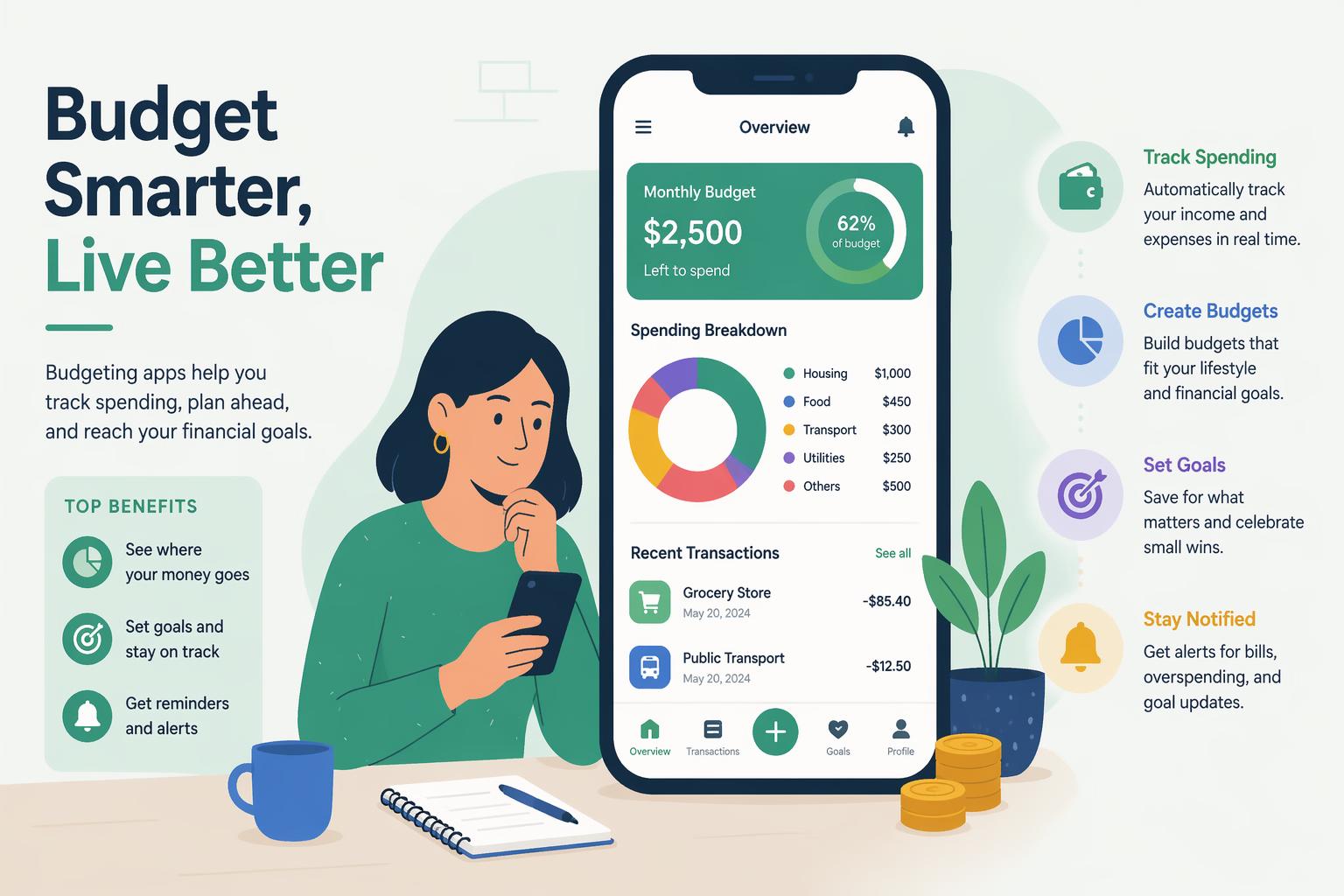
Step 3: Check Security Standards Before Connecting Accounts
Security matters more than features. In 2026, most major budgeting apps use bank level encryption and multi factor authentication, but not all platforms are equally transparent about compliance.
Before picking an app, check:
- Encryption standard: Look for “bank level 256 bit encryption” in their security docs
- Multi factor authentication (MFA): The app should require 2FA for login
- Read only access: The app should only view transactions, never move money
- Connection method: Apps using Plaid, Yodlee, or MX have stronger security protocols
- Privacy policy: Check what data they sell (or don’t sell) to third parties
You want to see clear security documentation on the app’s website. If you can’t find their security practices explained in plain language, that’s a red flag.
> Note: If you’re uncomfortable linking bank accounts, try Goodbudget (envelope budgeting without bank sync) or YNAB (which offers manual entry mode). These take more manual work but give you complete control over your data.
—
Step 4: Start With the Free Trial (Not the Free Tier)
Most top budgeting apps in 2026 lock their best features behind paywalls. Free tiers are usually too limited to give you a real sense of whether the app works.
Use free trials strategically:
- YNAB: 34 day free trial (longest available in 2026)
- CalendarBudget: 30 day free trial with full access
- Monarch Money: 7 day free trial
How to get the most from trial periods:
- Set a calendar reminder for 2 days before the trial ends
- Use the app daily for at least 14 days (it takes about 2 weeks to form a habit)
- Test the features that matter most to your goal—don’t explore everything
- Track one specific outcome: “Did I reduce impulse spending?” or “Do I know where my money went this week?”
By day 14 you should have a clear answer: “This works for me” or “This doesn’t fit my style.” If you’re still unsure, try a different app. Don’t pay for uncertainty.
—
Step 5: Connect Your Bank Accounts (Or Set Up Manual Entry)
Once you’ve chosen an app, connect your accounts. This is where most people quit, so take it slow.
For automatic syncing:
- Open the app and go to “Accounts” or “Link Bank”
- Search for your bank by name (most apps sync with 15,000+ US institutions)
- Enter your online banking credentials when prompted
- Authorize read only access (the app will show exactly what permissions it’s requesting)
- Wait 24-48 hours for initial transaction sync
For manual entry (if you prefer not to link accounts):
- Set up account “containers” in the app (Checking, Savings, Credit Card)
- Enter your current balance for each account
- Commit to logging transactions daily (set a phone reminder for 8 PM)
- Update balances weekly to catch any missed entries
All your accounts should show up with accurate current balances. Initial transaction history may take 24-48 hours to populate.
> Note: Start with just your primary checking account and one credit card. Don’t try to connect every account on day one—it’s overwhelming and you’re more likely to give up.
—
Step 6: Set Up Your Budget Categories
This varies a lot based on which budgeting method your app uses.
For zero based budgeting (YNAB, EveryDollar):
- List all your monthly expenses by category (Housing, Food, Transportation, etc.)
- Assign every dollar of your current balance to a category until you reach zero
- When new money comes in, immediately assign it to categories
- If a category runs out, move money from another category—don’t go negative
For flexible tracking (PocketGuard, Monarch):
- Review the auto generated spending categories from your transaction history
- Adjust category names to match your language (change “Dining” to “Eating Out” if that’s clearer)
- Set spending targets for categories you want to control (optional—many people skip this)
- Focus on the “How much can I spend?” number rather than individual categories
For envelope budgeting (Goodbudget):
- Create envelopes for each spending category
- Fill each envelope with your budgeted amount for the month
- As you spend, deduct from the right envelope
- When an envelope is empty, stop spending in that category
Your budget structure should take 10 minutes or less to check daily. If setup takes more than 30 minutes, you’ve overcomplicated it—combine categories.
—
Step 7: Categorize Your First Week of Transactions
Most apps auto categorize transactions, but they get it wrong 20-30% of the time initially. Training your app to categorize correctly matters.
- Open the app and go to your transaction list
- Review the last 7 days of transactions
- Tap any miscategorized transaction
- Select the correct category from the dropdown
- Enable “Always categorize [Merchant Name] as [Category]” if the app offers it
Common mistakes to watch for:
- Grocery store purchases categorized as “General Merchandise” instead of “Groceries”
- Gas station snacks categorized as “Gas” instead of “Food”
- Venmo/PayPal transfers categorized as “Transfer” instead of the actual expense type
- Subscriptions not flagged as recurring expenses
After correcting transactions for 7-10 days, auto categorization accuracy should improve to 80-90%. Apps with AI capabilities (like Origin’s AI advisor) learn faster.
> Note: Don’t obsess over perfect categorization. If you’re debating whether coffee counts as “Food” or “Entertainment” for more than 10 seconds, you’re missing the point. Pick one and move on.
—
Step 8: Set Up Spending Alerts and Notifications
Notifications keep you engaged without requiring you to open the app constantly.
Alerts to enable:
- Daily spending summary: Get a notification each evening showing total spent that day
- Budget warnings: Alert when you’ve used 75% and 100% of a category budget
- Large transactions: Notify for any purchase over $50 (adjust based on your normal spending)
- Bill reminders: 3 day warning before recurring bills are due
- Low balance warnings: Alert when checking account drops below a threshold you set
Alerts to disable (they create notification fatigue):
- Every single transaction notification
- Weekly reports (daily summaries are more actionable)
- Motivational messages (“You’re doing great!”)
- Investment performance updates (unless that’s your main goal)
Aim for 2-4 notifications per day maximum. More than that and you’ll start ignoring them all.
—
Step 9: Track One Specific Metric for 30 Days
The big picture is more motivating than obsessing over single transactions. Choose one metric to improve over your first 30 days:
Possible tracking metrics:
- Total spending vs. income (aim for spending less than you earn)
- Days until you run out of money (PocketGuard’s “In My Pocket” feature)
- Number of impulse purchases over $20
- Net worth change (if tracking investments)
- Subscription costs as percentage of income
- Savings rate (percent of income going to savings)
How to track it:
- Record your starting point today in the app’s notes or a separate document
- Check your metric once per week (same day, same time)
- Screenshot your progress weekly
- At day 30, compare your starting point to where you are now
Even a 5-10% improvement counts as success and proves the system works for you.
—
Step 10: Review and Adjust Weekly (Not Daily)
Daily transaction logging matters. Daily budget analysis doesn’t. Set a weekly “money date” to review and adjust.
Your 15 minute weekly review:
- Review spending by category: Which category went over budget? Which had money left over?
- Adjust next week’s budget: Move money between categories based on what actually happened
- Reconcile discrepancies: Check for any transactions that didn’t sync or were categorized wrong
- Celebrate wins: Note categories where you stayed under budget
- Plan for upcoming expenses: Add any irregular expenses for the next week
Best day for weekly reviews: Sunday evening or Monday morning (planning mode) or Friday afternoon (reflection mode). Pick whichever feels more natural and stick with the same day.
Budget adjustments should get smaller and more predictable by week 4. If you’re still making major adjustments by week 8, your categories might be too detailed.
—
Step 11: Handle Irregular Income
If your income varies month to month (freelance, commission, seasonal work), standard budgeting advice doesn’t work.
- Calculate your average monthly income from the last 6 months
- Budget based on your lowest income month, not your average
- When you have a high income month, assign extra money to a “Next Month’s Income” category
- If you have a low income month, pull from “Next Month’s Income” to cover the gap
- Build toward having one full month of expenses saved as a buffer
Apps with strong irregular income features:
- CalendarBudget: $11.99/month or $89.99/year — Visual calendar helps you see exactly when bills are due relative to when income arrives
- YNAB: $14.99/month or $109/year — “Age of Money” metric shows how long your money sits before you spend it
After 3-4 months, you should be spending last month’s income, not this month’s paycheck. This breaks the paycheck to paycheck cycle.
—
Step 12: Automate Savings Based on Your Budget
Once you have 4-6 weeks of solid tracking data, automate the savings amount your budget proves you can afford.
- Review your last 4 weeks of spending
- Calculate your average weekly surplus (income minus actual spending)
- Multiply by 4 to get your sustainable monthly savings amount
- Set up automatic transfer from checking to savings for that amount
- Schedule the transfer for the day after your paycheck typically arrives
Apps with built in automated savings:
- Albert: $11.99-$21.99/month — Automated savings based on spending patterns
- PocketGuard: $12.99/month or $74.99/year — Shows exactly how much you can save after bills and goals
Automatic savings should happen without you thinking about it. If you’re frequently transferring money back from savings to checking, your automated amount is too aggressive—reduce it by 25%.
—
Troubleshooting Common Issues
“My transactions aren’t syncing”
This usually means your bank needs re-authentication. Go to the linked accounts section, select your bank, and re-enter your login credentials. Most apps require re-authentication every 90 days for security.
“The app categorized everything wrong”
Spend 10 minutes correcting the top 10 merchants you use most and enable “always categorize this merchant as [category].” After that, ignore minor mistakes—they won’t materially affect your overall spending picture.
“I keep going over budget in the same category”
Your budget is unrealistic for that category. Increase the budget amount and decrease another category to compensate. Better to work with accurate numbers than aspire to unrealistic ones and feel like a failure.
“I stopped checking the app after 2 weeks”
You haven’t connected the app to a specific goal that matters to you. Go back to Step 1 and identify a more concrete, emotional goal (not “save money” but “save $3,000 for a vacation to Japan by December”).
“The free trial ended and I’m not sure if it’s worth paying”
Ask yourself: Did you check the app at least 10 times during the trial? Did you learn something surprising about your spending? If yes to both, it’s worth paying. If no to either, try a different app or method.
—
What You’ve Accomplished
You now have a working budget system that:
- Automatically tracks your spending across all accounts
- Alerts you before you overspend in key categories
- Shows you exactly how much money you can spend today
- Saves money automatically based on your actual spending patterns
- Takes less than 10 minutes per day to maintain
This is your foundation for every other financial goal—whether that’s paying off debt faster, building an emergency fund, or investing for retirement.
Next steps to explore:
- Set up debt payoff tracking if you have credit card or loan balances (Monarch Money is good at this)
- Connect investment accounts to track net worth growth (Origin’s AI advisor provides contextual analysis)
- Add shared access if you manage finances with a partner (HoneyDue is free for couples)
- Review your subscriptions quarterly to cancel ones you’re not using (Rocket Money automates this)
—
Frequently Asked Questions
Do I need a paid plan to follow this tutorial?
No—you can complete all steps with a free trial. But the best features of budgeting apps often hide behind paywalls, so budget for $7-15/month if the app proves valuable during your trial.
Is it safe to connect my bank account to a budgeting app?
Yes, if you choose apps with bank level 256 bit encryption and read only access. Security standards have improved a lot in 2026, with most major apps using multi factor authentication. Never use an app that can move money—only view transactions.
What’s the best free budgeting app?
HoneyDue is completely free and rated 4.5/5 on the App Store. Goodbudget offers a free basic tier with envelope budgeting. But free tiers of premium apps (like YNAB or Monarch) are too limited to be useful—use their free trials instead.
Can I use a budgeting app if I get paid irregularly?
Yes—CalendarBudget ($11.99/month or $89.99/year) is designed specifically for irregular income with its visual calendar view. YNAB ($14.99/month or $109/year) also handles variable income well with its “Age of Money” feature.
How long does it take to see results?
Most people see changes in spending awareness within 7-10 days and actual spending reduction within 30 days. You should have a clear sense of whether the app works for your style within 2 weeks.
What if I don’t want to link my bank account?
Choose apps that support manual entry: Goodbudget (envelope budgeting), YNAB (offers manual only mode), or even a spreadsheet. You’ll spend 5-10 minutes per day logging transactions, but you maintain complete data privacy.