How to Get Started with Budgeting Apps: A Step-by-Step Guide (2026)
This article contains affiliate links. If you purchase through these links, we may earn a commission at no additional cost to you. See our full disclosure.
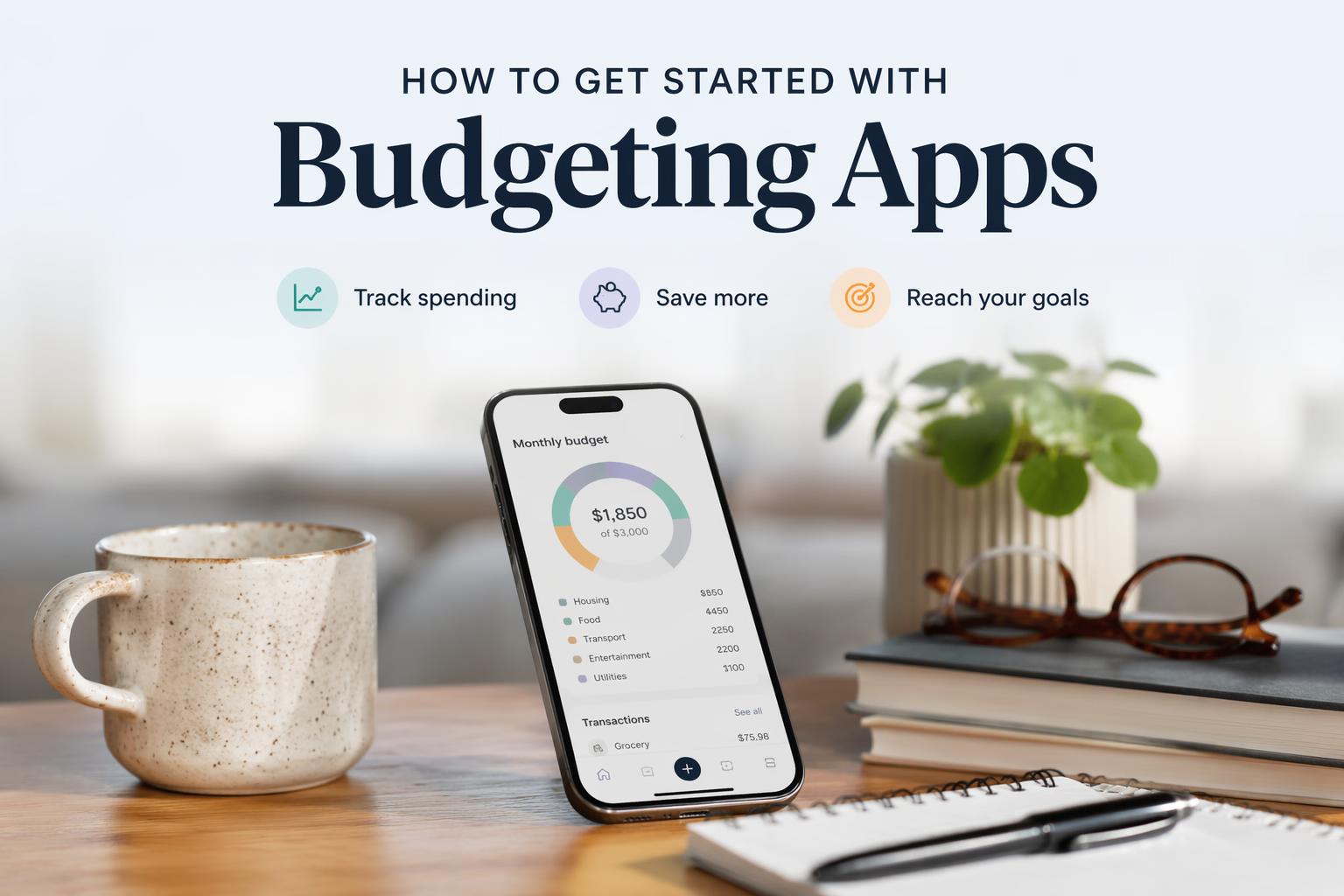
You know you should be tracking your spending. You’ve tried spreadsheets, maybe even pen and paper. But life gets busy, transactions pile up, and suddenly it’s been three weeks since you logged anything.
Budgeting apps promise to fix this — automatic tracking, instant insights, goals that actually stick. But with 38+ apps on the market in 2026, each claiming to be “the best,” how do you pick one that actually works for your situation without overpaying for features you’ll never use?
By the end of this guide, you’ll have a budgeting app installed, connected to your accounts, and set up with your first month’s budget. You’ll know exactly which features matter for your financial situation and which ones are just marketing noise.
What you need before starting:
- A clear answer to: “What’s my biggest money problem right now?” (overspending, debt payoff, irregular income, household coordination)
- Your primary bank’s login credentials
- 20-30 minutes of uninterrupted time
- A smartphone or desktop computer
Estimated time: 25 minutes from selection to first budget
—
Step 1: Identify Your Primary Money Problem
Before you download anything, answer this question honestly: What financial problem are you actually trying to solve?
The best budgeting app for you depends entirely on your answer. Here’s how to map your situation:
If you said “I don’t know where my money goes”:
You need automatic transaction tracking and spending insights. Look for apps with strong bank syncing and AI-powered categorization.
If you said “I need to pay off debt”:
You need goal-tracking features and debt payoff calculators that show you exactly when you’ll be free of payments.
If you said “My income varies every month”:
You need flexible budgeting that adapts to irregular paychecks, not rigid monthly allocations.
If you said “My partner and I need to coordinate household expenses”:
You need shared budget access and collaborative features built for couples or families.
You should see: One clear problem statement that you can test every app feature against.
> Note: If you have multiple problems, pick the most urgent one. You can always add complexity later, but starting with too many features guarantees you’ll abandon the app within two weeks.
—
Step 2: Match Your Problem to the Right App Category
Based on research analyzing 38 budgeting apps across 18 metrics in 2026, here are the apps that actually solve specific problems (not just the ones with the biggest marketing budgets):
For “Where does my money go?” (Spending Visibility)
PocketGuard — Shows you exactly how much you can spend after bills and savings
- Cost: $12.99/month or $74.99/year
- Best feature: “In My Pocket” calculation that factors in bills, goals, and necessities to show your true spending power
- App Store ratings: 4.6/5 (iOS), 4.2/5 (Android)
Rocket Money — Tracks spending patterns and identifies wasteful subscriptions
- Cost: $7-$14/month based on features
- Best feature: Subscription management that cancels forgotten services
For Debt Payoff and Goal-Setting
Monarch Money — Premium option with comprehensive debt tracking
- Cost: $14.99/month or $99.99/year (7-day free trial)
- Best feature: Integrations across banking, investments, and debt for complete financial view
- App Store ratings: 4.9/5 (iOS), 4.7/5 (Google Play)
- Why it works: Custom savings goals and debt payoff tracking with partner collaboration built in
Try Monarch Money with a 7-day free trial →
For Irregular Income and Flexible Budgeting
YNAB (You Need a Budget) — Zero-based budgeting that adapts to variable income
- Cost: $14.99/month or $109/year (34-day free trial)
- Best feature: “Give every dollar a job” methodology that works whether you earn $3,000 or $8,000 this month
- App Store ratings: 4.8/5 (iOS), 4.6/5 (Google Play)
For Couples and Household Management
HoneyDue — Purpose-built for shared finances
- Cost: Free
- Best feature: Separate views for personal vs. shared expenses
- App Store ratings: 4.5/5 (iOS), 4.2/5 (Google Play)
Goodbudget — Envelope budgeting that syncs across multiple devices
- Cost: Free basic tier, $80/year premium
- Best feature: Traditional envelope system adapted for digital use
- App Store ratings: 4.6/5 (iOS), 3.3/5 (Google Play)
For Calendar-Based Visual Budgeters
CalendarBudget — See your money timeline, not just categories
- Cost: $11.99/month or $89.99/year (30-day free trial)
- Best feature: Visual calendar view shows when money comes in and when bills go out
- Why it matters: Understanding the big picture of your finances is more motivating than obsessing over single transactions
You should see: One or two apps that directly address your Step 1 problem statement.
> Decision point: If your primary bank isn’t listed in an app’s supported institutions, it won’t sync automatically. Check the app’s website for bank compatibility before committing.
—
Step 3: Evaluate Security Before Connecting Your Bank
Security standards improved significantly across major budgeting apps in 2026, but not all platforms are equal in compliance transparency.
Before you link any account, verify these three things:
- Bank-level encryption: Look for “256-bit encryption” or “bank-level security” language on the app’s security page
- Multi-factor authentication: The app should require more than just a password to access your data
- Read-only access: Confirm the app can view your transactions but cannot move money or make payments
Where to check: Every legitimate budgeting app has a dedicated security or privacy page. If you can’t find one easily, that’s a red flag.
You should see: Clear statements about encryption standards, two-factor authentication options, and explicit confirmation that the app has read-only access to your accounts.
> Note: “Is it safe to link my bank account to a budgeting app?” is the most common question users ask in 2026. The answer: Apps using Plaid or similar aggregation services (most major apps do) cannot initiate transfers or payments — they can only read transaction data.
—
Step 4: Sign Up and Choose Your Plan
Most apps offer free trials ranging from 7 to 34 days. Here’s how to maximize them:
For YNAB (34-day trial):
- Visit the YNAB website or download the app
- Click “Start Your Free Trial”
- Enter your email — no credit card required upfront
- Set a calendar reminder for day 30 to evaluate whether you’re actually using it
For Monarch Money (7-day trial):
- Download the Monarch Money app or visit their website
- Create an account with email
- Credit card required but you won’t be charged during trial
- Cancel before day 7 if it’s not working for you
For free-tier apps (Goodbudget, HoneyDue):
Start with the free version and only upgrade if you hit a feature limit that actually blocks your progress.
Paid-tier pricing reality in 2026: Budget app costs range from $50-$150/year. That’s $4-$12/month. If the app helps you avoid one overdraft fee ($35) or catch one forgotten subscription ($15/month), it pays for itself.
You should see: Confirmation email and access to the app’s main dashboard within 2 minutes of signup.
> Common mistake: Signing up for annual plans before testing the app. Always start with monthly or free trials — switching apps later is annoying but not impossible.
—
Step 5: Connect Your Primary Bank Account
This is where most people quit. Don’t let security anxiety stop you here — you’ve already verified encryption standards in Step 3.
- Tap “Add Account” or “Link Bank” on the app’s main screen
- Search for your bank by name — apps sync with 15,000+ institutions in 2026
- Enter your online banking credentials (username and password)
- Complete two-factor authentication if your bank requires it
- Wait 30-60 seconds while the app imports your transactions
What’s happening behind the scenes: The app uses a service like Plaid to securely fetch your transaction history (usually 30-90 days of data). Your credentials are encrypted and the app cannot move money.
You should see: Your recent transactions appearing in the app within 60 seconds, automatically categorized (groceries, gas, restaurants, etc.).
> Troubleshooting: If connection fails, verify you’re using your online banking login (not your debit card PIN). Some credit unions require you to enable “third-party access” in their security settings first.
—
Step 6: Review and Fix Auto-Categorization
No app gets categorization 100% correct on the first sync. Spend 5 minutes fixing obvious mistakes now to train the system.
- Scroll through your imported transactions
- Tap any miscategorized item (e.g., Walmart purchase marked as “Groceries” when it was actually household supplies)
- Reassign to the correct category
- Select “Always categorize [Merchant Name] as [Category]” if the app offers this option
Why this matters: Budgeting apps use machine learning to improve categorization over time, but they need your input on edge cases. Five minutes of correction now saves hours of manual sorting later.
You should see: At least 80% of transactions correctly categorized after your first pass. The remaining 20% will improve as the app learns your spending patterns.
—
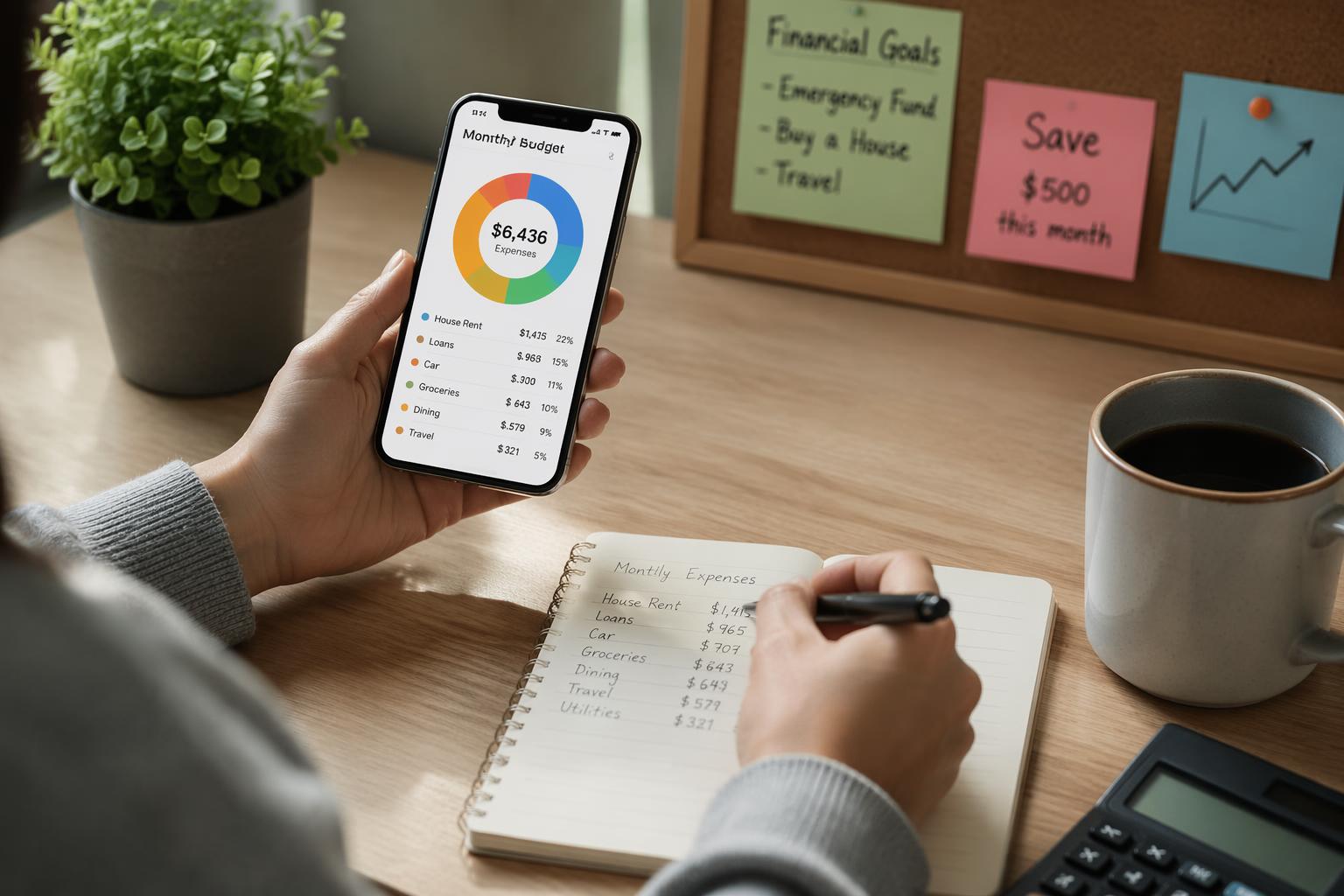
Step 7: Set Up Your First Month’s Budget
Now comes the methodology choice. Apps fall into three camps:
Zero-based budgeting (YNAB, EveryDollar):
Every dollar gets assigned a job. Income minus all category allocations = $0.
Envelope budgeting (Goodbudget):
Digital version of cash envelopes. When a category is empty, you stop spending there.
Flexible tracking (PocketGuard, Monarch):
Set loose spending targets per category but don’t enforce strict limits.
Which should you choose?
- If you need strict discipline: Zero-based (YNAB)
- If you need visual boundaries: Envelope (Goodbudget)
- If you need awareness without restriction: Flexible tracking (PocketGuard, Monarch)
To set up your first budget:
- Locate the “Budget” or “Spending Plan” tab
- Enter your expected income for this month (or use the app’s suggestion based on your transaction history)
- Allocate amounts to each category: Start with your actual average spending from the past 30 days (the app will show you this)
- Add 10-15% buffer to variable categories like groceries and gas — perfection is the enemy of progress here
- Review the summary: Income should equal or exceed total allocated spending
You should see: A balanced budget where your income covers all category allocations, with a small surplus for savings or debt payoff.
> Beginner trap: Setting unrealistic targets (“I’ll only spend $200/month on groceries!”) guarantees failure. Use your actual spending history as the baseline, then reduce by 5-10% once you’ve tracked for a full month.
—
Step 8: Connect Additional Accounts (Optional But Recommended)
If you have credit cards, savings accounts, or investment accounts, connect them now for a complete financial picture.
- Return to “Add Account” or “Link New Account”
- Add each credit card you use regularly — this prevents the “out of sight, out of mind” trap where credit card debt sneaks up on you
- Add savings and investment accounts if your app offers net worth tracking (Monarch, PocketGuard)
Why this helps: Seeing all your money in one place — checking, savings, credit cards, investments — gives you the “big picture” clarity that researchers found is more motivating than tracking individual transactions.
You should see: All your financial accounts listed in one dashboard, updating automatically each day.
—
Step 9: Set One Specific Financial Goal
Most apps offer goal-tracking features. Use exactly one goal to start.
Strong goal examples:
- “Save $1,000 emergency fund by December 2026”
- “Pay off $3,500 credit card by March 2026”
- “Build $500 vacation fund by June 2026”
Weak goal examples:
- “Save more money” (too vague)
- “Get better with finances” (not measurable)
- “Max out retirement” (too distant, no monthly milestone)
To create a goal in most apps:
- Tap “Goals” or “Savings” in the main menu
- Select “Create New Goal”
- Name your goal and enter the target amount
- Set a target date
- Let the app calculate your required monthly contribution
You should see: A clear monthly savings target (e.g., “Save $167/month to reach $1,000 by December”) and a visual progress bar.
—
Step 10: Enable Notifications for Spending Alerts
The best feature of modern budgeting apps: they warn you before you overspend, not after.
- Open app settings or preferences
- Navigate to “Notifications” or “Alerts”
- Enable these specific alerts:
– Weekly spending summary
– “Approaching budget limit” warnings (at 75% of category budget)
– Large transaction alerts (anything over $50-100)
– Bill reminders 2 days before due date
What to avoid: Daily transaction notifications. These create noise fatigue and you’ll start ignoring all alerts within a week.
You should see: Confirmation that notifications are enabled, with your first weekly summary arriving within 7 days.
—
Step 11: Schedule Your Weekly Budget Check-In
Apps don’t work if you never open them. Create a recurring 10-minute appointment with your budget.
Best practice schedule:
- Day: Sunday evening or Monday morning (start of your week)
- Duration: 10 minutes maximum
- What to do:
1. Review the past week’s spending
2. Fix any miscategorized transactions
3. Check progress toward your one goal from Step 9
4. Adjust this week’s spending if you’re over budget in any category
How to remember: Set a recurring calendar event titled “Budget Check” with a direct link to your budgeting app.
You should see: A calendar reminder that ensures you’ll actually maintain the habit past the first week.
> Reality check: If you skip two consecutive weekly check-ins, your budgeting app becomes shelfware. The 10-minute weekly review is what separates people who succeed with budgeting apps from those who abandon them after two months.
—
Step 12: Test Your Setup With a Real Purchase Decision
Before you finish, verify your system works in real life.
- Think of something you want to buy this week (dinner out, new shoes, a book)
- Open your budgeting app
- Check the relevant category balance (Dining Out, Clothing, Entertainment)
- Ask yourself: “If I spend this, will I still have enough left in this category for the rest of the month?”
- Make your decision based on the answer
What you’re testing: Can you actually use this app to guide spending decisions, or is it just a passive tracker you’ll ignore?
You should see: A clear yes/no answer to “Can I afford this right now?” within 10 seconds of opening the app.
—
You’ve Just Set Up Your First Real Budget
Here’s what you now have:
- A budgeting app matched to your specific financial problem
- Bank accounts synced and automatically categorizing transactions
- Your first month’s budget based on realistic spending patterns
- One specific financial goal with measurable progress
- A weekly check-in system to maintain momentum
What happens next: Your app will automatically import new transactions daily. You’ll get your first weekly spending summary within 7 days. By the end of your first month, you’ll know exactly where your money went — probably for the first time ever.
The apps featured in this guide represent the strongest options across different use cases in 2026. Monarch Money stands out for comprehensive financial visibility and goal-setting. YNAB remains the gold standard for zero-based budgeting methodology. PocketGuard excels at showing you exactly how much you can spend right now.
Start your free trial with Monarch Money →
—
Troubleshooting Common Setup Problems
“My bank won’t connect”
- Verify you’re using online banking credentials, not your debit card PIN
- Check if your bank requires enabling “third-party access” in security settings
- Some small credit unions don’t support automatic syncing — you’ll need to manually enter transactions
“The app marked my rent payment as ‘Entertainment'”
- This happens with payment processors like Zelle or Venmo
- Manually recategorize and select “Always use this category for [Payee Name]”
- The app will learn after 2-3 corrections
“My category budgets don’t match my actual spending”
- Increase your budget allocations to match reality for month one
- You can optimize and reduce spending in month two once you have baseline data
- Unrealistic budgets are the #1 reason people quit apps
“I’m overwhelmed by too many categories”
- Collapse to 5-7 major categories: Housing, Transportation, Food, Utilities, Debt/Savings, Everything Else
- Add specificity only after you’ve maintained the habit for 30 days
“My partner and I both need access”
- HoneyDue, Monarch, and Goodbudget all offer built-in sharing
- YNAB and others require upgrading to family plans
- Never share login credentials — use official sharing features
—
Next Steps: Optimizing Your Budget After Month One
Once you’ve tracked for 30 days:
- Compare actual vs. budgeted spending per category — where were you off by more than 20%?
- Identify your “leak categories” — where money disappears without you noticing (usually subscriptions, coffee shops, impulse Amazon purchases)
- Adjust next month’s budget based on real data, not wishful thinking
- Add a second financial goal if you’re consistently hitting your first one
Related features to explore after your first successful month:
- Bill tracking and payment reminders (most apps include this)
- Subscription audits to cancel services you forgot about (Rocket Money specializes in this)
- Net worth tracking to see your complete financial picture beyond monthly cash flow
- Automated savings rules that move money to savings when you underspend a category
—
Frequently Asked Questions
Do I need a paid plan to follow this tutorial?
No. Free tiers exist (HoneyDue, Goodbudget basic), and most premium apps offer 7-34 day trials. You can complete this entire setup process on a free trial and decide whether to pay before the trial ends.
How long does setting up a budgeting app take?
25-30 minutes for initial setup following these steps. Weekly maintenance is 10 minutes. If you’re spending more than 15 minutes per week, your budget is too complex.
Can I do this without linking my bank account?
Yes, but you’ll lose the automatic transaction import that makes budgeting apps worth using. Apps like Goodbudget and YNAB allow manual transaction entry, but this requires significantly more discipline.
Is YNAB worth $109/year?
If you’re paying off debt or need strict spending discipline, yes. YNAB users report an average first-year savings of $600 according to the company’s own data. If you just need spending awareness, free or lower-cost alternatives work fine.
What’s the difference between budgeting apps and expense trackers?
Expense trackers (Mint was the classic example) show you where money went. Budgeting apps tell you where money should go before you spend it. The proactive planning is what changes behavior.
Can budgeting apps help with irregular income?
Yes, but you need the right methodology. YNAB’s zero-based budgeting and Goodbudget’s envelope system both adapt to variable income better than rigid monthly allocation apps. Budget based on your lowest expected monthly income, not your average.
—
Alternatives to Budgeting Apps
If apps feel like overkill: Start with a simple spreadsheet tracking income vs. expenses. This works if you have fewer than 10 transactions per week.
If you prefer analog: The envelope budgeting system with actual cash still works. Withdraw your monthly budget in cash, divide into envelopes by category, spend only what’s in each envelope.
If you want zero technology: Weekly “money dates” with your bank statement and a calculator. Review every transaction, categorize manually, adjust next week’s spending.
The advantage of apps: they automate the boring parts (transaction import, categorization, math) so you can focus on the decision-making. The disadvantage: one more login to remember, one more subscription to evaluate.
—
Affiliate Disclosure
This article contains affiliate links to budgeting apps and financial services. If you sign up for a paid plan through these links, we may earn a commission at no additional cost to you. We only recommend apps we’ve researched and that solve specific financial problems. Our editorial recommendations are independent of affiliate partnerships. All pricing, features, and ratings are accurate as of July 2026 and were verified through direct research and public sources including Forbes, Experian, and NerdWallet.