What Is AI Video? The 2026 Beginner’s Guide That Skips the Hype
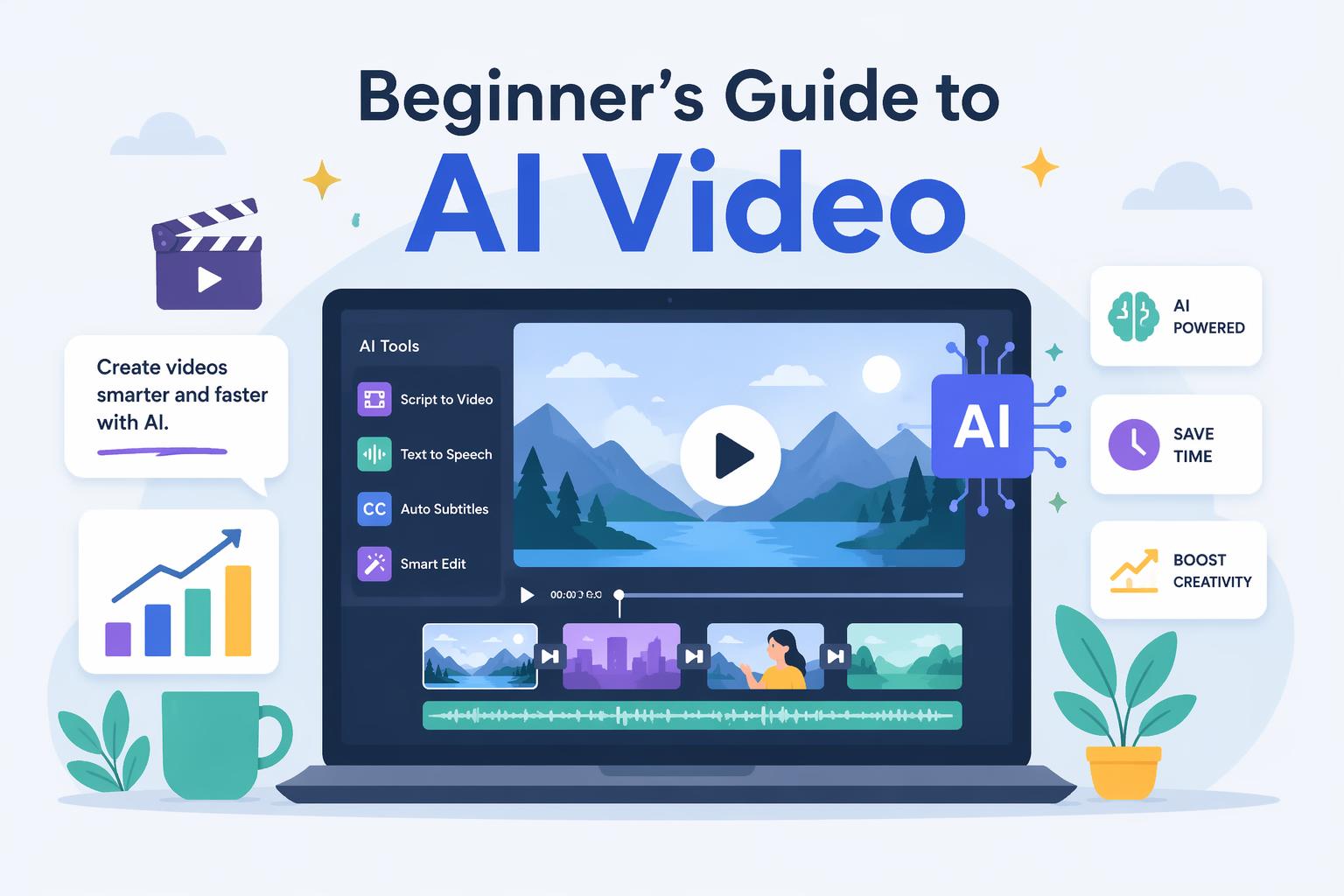
AI video isn’t magic. It’s a production tool that became accessible in 2026. You give it a text prompt or reference image, and it generates video clips. Some are spectacular. Most are mediocre. The difference comes down to knowing which tool fits your use case and how to structure your input so you don’t burn credits on failed attempts.
This guide walks you through what AI video actually is, how the technology works, which methods beginners should start with, and how to pick a tool without overpaying. By the end, you’ll know enough to generate your first usable clip and avoid the expensive mistakes most newcomers make.
Table of Contents
- What AI Video Actually Means in 2026
- How AI Video Generation Works (Without the Jargon)
- The Three Methods: text to video, image to video, and hybrid
- Which Tools Are Worth Using in 2026
- Pricing Reality: What You’ll Actually Spend
- The Beginner’s Starting Point (Hint: Not text to video)
- Common Mistakes That Waste Your Budget
- FAQ
What AI Video Actually Means in 2026
AI video means generative video—software that creates video clips from text descriptions, static images, or a combination of both. You’re not editing existing footage. You’re generating new frames that didn’t exist before.
The term covers everything from 5 second product loops to 26 second cinematic scenes. Quality ranges wildly. A tool like OpenArt 4K Generator (which offers unlimited free access with no watermark as of 2026) can produce clean 4K output. Others max out at 720p or introduce artifacts that make the clip unusable.
The core promise: you describe what you want, the AI renders it. Reality: most tools need multiple attempts before you get something you’d actually publish. Success rate varies by tool, input method, and how much control you’re willing to give up.
How AI Video Generation Works (Without the Jargon)
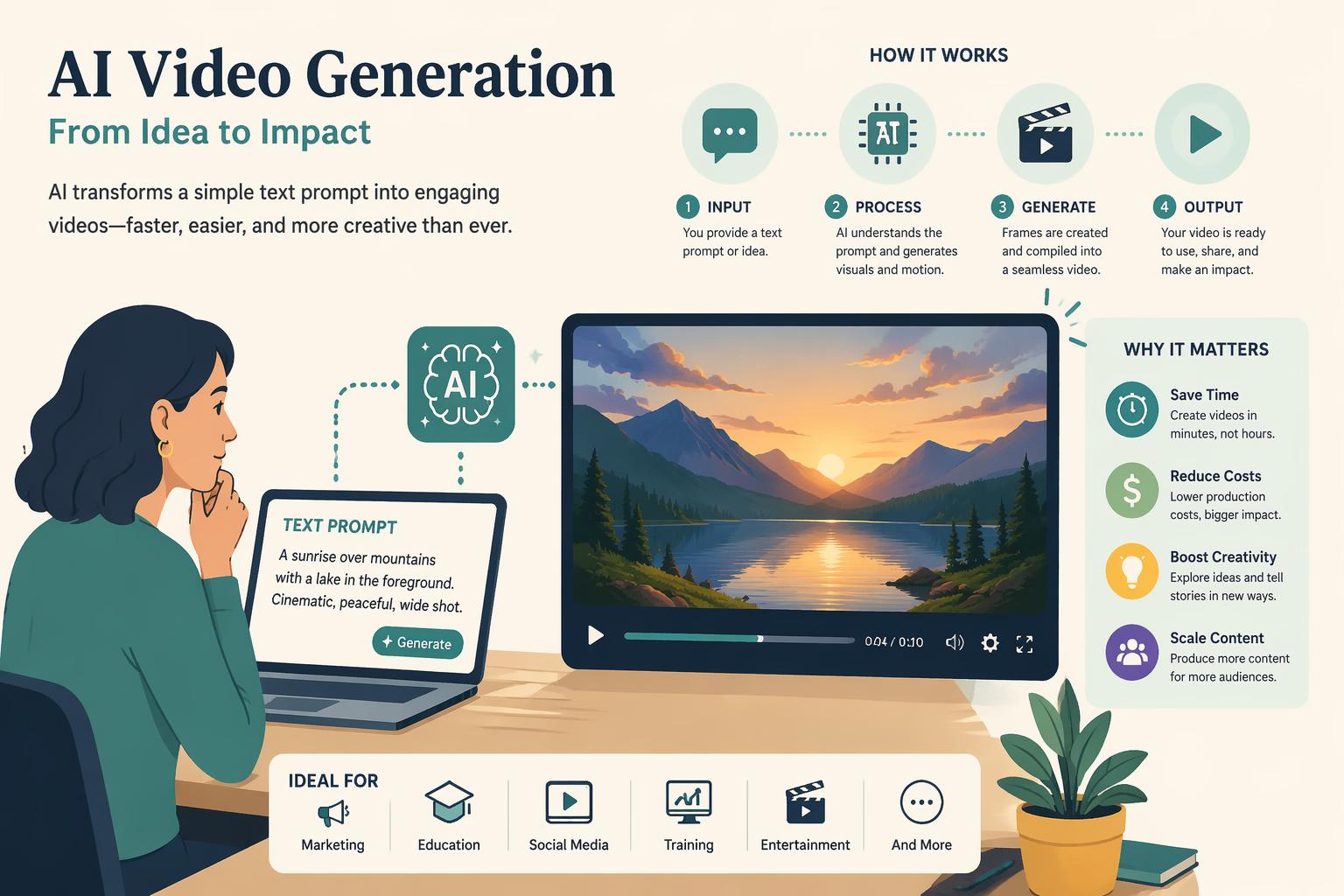
AI video models are trained on millions of video clips. They learn patterns—how objects move, how light behaves, how a person’s face changes when they talk. When you submit a prompt, the model predicts what frames should come next based on those patterns.
Text to video models interpret your description and generate frames from scratch. They’re powerful but unpredictable. A prompt like “a medieval explorer cautiously walking through a dark cavern filled with treasure” might produce something cinematic. Or it might give you a distorted figure with inconsistent lighting.
Image to video models take a static reference image and animate it. You control the starting point, which drastically improves consistency. If you feed in a clean character portrait, the model animates that exact character rather than inventing one.
Hybrid approaches combine both. You provide reference images for characters and environments, then use text prompts to direct the action. This is what most professionals converged on in 2026 because it balances control with creative flexibility.
The technical difference: models with limited reference inputs need more retries to get usable output. A tool that only accepts text requires you to describe everything perfectly. A tool that accepts 9 image references and 3 video clips (like Seedance 2.0) lets you lock in the look upfront, reducing failed attempts.
The Three Methods: text to video, image to video, and hybrid
Text to video
You write a prompt. The AI generates everything.
Fast to start. No image prep required. But unpredictable results. Character consistency is poor across multiple clips. You’re stuck with whatever the model imagines. Most beginners burn through credits here because they’re redoing prompts 5+ times.
Good for quick mockups, abstract concepts, one off clips where consistency doesn’t matter.
Example tools: Veo 3.1 ($49/month), Kling 3.0 ($29/month)
Image to video
You provide a static image. The AI animates it.
Consistency. You control the starting frame, so characters and environments stay recognizable. This is the best method for beginners because it removes the guessing game.
Downside: you need a good reference image first (either sourced or generated with an AI image tool). Requires an extra step upfront.
Good for character driven content, branded content where the look must stay consistent, anything requiring multiple scenes with the same subject.
Example tools: Kling 3.0, OpenArt 4K Generator
Hybrid (reference stack)
You provide multiple reference images (characters, props, environments) plus a text prompt describing the action.
Highest control. Best output quality. You’re guiding the model with both visual anchors and creative direction. Production teams converged on this approach because it minimizes costly retries.
More prep work. Requires understanding how to structure references effectively. Not all tools support it—only advanced models like Seedance 2.0, which handles up to 9 image references and 3 video clips.
Good for professional projects, narrative content, anything where failed attempts are expensive.
Which Tools Are Worth Using in 2026
The field in 2026 is crowded. What actually delivers:
OpenArt 4K Generator
Free (unlimited, no watermark). Beginners who want to test AI video without spending money should start here. Generates clean 4K output. No catch—it’s free as of 2026.
Limitation: feature set is basic compared to paid tools. Fine for learning, but you’ll outgrow it fast.
Kling 3.0
$29/month. Strong for text to video and robust character customization. Strong performance on cinematic scenes. One test in 2026 highlighted Kling 3.0 as a top choice for realistic output.
Limitation: character consistency across clips requires careful prompting. Works better with image references.
Veo 3.1
$49/month. Template driven workflows. If you’re producing the same type of video repeatedly (product demos, explainer clips), templates speed up the process.
Limitation: less flexible for custom creative work. You’re adapting templates, not building from scratch.
Seedance 2.0
$0.10 per second (720p model). Professional hybrid workflows. Handles up to 9 image references and 3 video clips. Generates clips up to 15 seconds in one shot. Supports lip sync in 8+ languages. Achieves an 80%+ first try success rate when properly prompted, which is rare in this space.
Limitation: pay per second pricing adds up fast. A 15 second clip costs $1.50. If you’re producing volume, monthly plans elsewhere might be cheaper—but you’ll redo clips more often.
ElevenLabs
Free trial available. AI audio and lip sync tools. Often paired with video generators to add voiceover or dialogue. In 2026, tools like Creatify Aurora and Runway Act 2 integrated lip sync and motion capture, making audio a required workflow step for character driven content.
Limitation: not a video generator itself—it’s part of a larger workflow.
Pricing Reality: What You’ll Actually Spend
Prompt only tools (text to video): you’ll spend $5 per finished clip after retries. Low first try success rates mean you’re generating 3 to 5 attempts before you get something usable.
Reference based tools (image to video or hybrid): $1.50 per finished clip on average. Higher first try success (80%+ with Seedance 2.0) reduces waste.
Budget traps: most cost overruns come from treating the middle layer as the whole process—jumping straight into video generation without planning references or structure. You burn credits iterating when you should have locked in the look upfront.
For beginners, start with OpenArt 4K Generator (free) to learn the mechanics. When you’re ready to scale, move to a reference based tool like Seedance 2.0 or Kling 3.0 with image inputs. Avoid committing to expensive monthly plans until you’ve tested enough to know your workflow.
The Beginner’s Starting Point (Hint: Not text to video)
If you’re learning AI video in 2026, start with image to video.
Consistency is easier to achieve. You control the starting frame, so you’re not guessing what the AI will generate. Fewer failed attempts. Text to video tools are unpredictable. Image to video removes half the variables. Faster learning curve. You see a direct connection between input (the image) and output (the animated clip). That feedback loop helps you understand what works.
Your first workflow
Generate or source a reference image. Use a free AI image tool like Nano Banana Pro or find a stock image that matches your concept.
Upload it to an image to video tool. OpenArt 4K Generator or Kling 3.0 both support this.
Add a simple motion prompt. “Slowly zoom in” or “character turns head to the right.” Keep it small—one action per clip.
Generate and review. Most tools take 1 to 3 minutes for a 5 second clip.
Iterate on the prompt, not the image. If the motion is wrong, adjust your text. If the subject is wrong, change the reference image.
Once you can reliably produce 5 second clips with image to video, you’re ready to layer in text prompts for more complex actions. That’s the hybrid approach—and it’s what professionals use.
Common Mistakes That Waste Your Budget
Starting with text to video
You’re fighting two variables at once: the subject (what the AI generates) and the action (how it moves). Beginners burn through credits trying to describe both perfectly. Start with image to video to lock in the subject first.
Overloading the prompt
A prompt like “a medieval explorer cautiously walking through a dark cavern filled with treasure, dramatic lighting, cinematic camera movement, 4K quality” is asking the AI to juggle too many elements. Most models fail. Break it into smaller clips: one for the walk, one for the treasure reveal, one for the lighting close up. Stitch them together afterward.
Ignoring consistency across clips
If you’re making a multi scene video, consistency in characters and environments matters. Text to video will give you a different looking character in every scene. Use reference images or a hybrid approach to keep the look locked.
Skipping the audio layer
A silent AI video looks unfinished. Pair your video generator with an audio tool like ElevenLabs for voiceover or Creatify Aurora for lip sync. In 2026, audio became a non negotiable part of the workflow for character driven content.
Committing to a monthly plan too early
Test with free or pay per use tools first. OpenArt 4K Generator is free. Seedance 2.0 charges per second, so you’re not locked into a subscription. Once you know your production volume and preferred workflow, then commit to a monthly plan.
FAQ
What are the top AI video generators for 2026?
The standout tools in 2026 are OpenArt 4K Generator (free, unlimited), Kling 3.0 ($29/month, strong cinematic output), Seedance 2.0 ($0.10/second, best for hybrid workflows), and Veo 3.1 ($49/month, template driven). Each fits a different use case—free for beginners, Kling for realism, Seedance for control, Veo for volume.
How do I ensure consistency in my AI videos?
Use image to video or hybrid methods instead of text only. Provide reference images for characters and environments so the AI animates the exact subject you want, rather than generating a new interpretation every time. Tools like Seedance 2.0, which accept up to 9 image references, are built for this.
What’s the best method for beginners?
Image to video. It removes the unpredictability of text to video by letting you control the starting frame. You’ll get usable results faster and waste fewer credits on retries. Start with a free tool like OpenArt 4K Generator and a simple motion prompt.
How much does AI video actually cost?
Free tools exist (OpenArt 4K Generator). Paid tools range from $0.10/second (Seedance 2.0) to $29 to $49/month (Kling 3.0, Veo 3.1). Real costs depend on retry rates—text only workflows average $5 per finished clip after failed attempts, while reference based workflows average $1.50 due to higher first try success.
Can I create 4K videos with AI?
Yes. OpenArt 4K Generator produces 4K output for free. Other tools like Kling 3.0 and Veo 3.1 also support 4K, though they require paid plans. Most beginners start at 720p or 1080p to save on generation costs, then upscale finished clips if needed.
What tools can I use to make AI videos?
In 2026, the main options are OpenArt 4K Generator (free), Kling 3.0 ($29/month), Veo 3.1 ($49/month), Seedance 2.0 (pay per second), and ElevenLabs (audio/lip sync). Pair a video generator with an audio tool for complete workflows. Start with OpenArt to learn, then upgrade based on your production needs.
How long does it take to generate an AI video?
Most tools take 1 to 3 minutes for a 5 second clip. Longer clips (15+ seconds) can take 5 to 10 minutes. Generation speed varies by tool and output resolution—4K takes longer than 720p. Factor in retry time: if your first try success rate is low, you’ll spend 10 to 20 minutes per finished clip.