How to Use AI Coding: A Complete Step-by-Step Guide (2026)
Disclosure: This article contains affiliate links. If you purchase through these links, I may earn a commission at no extra cost to you.

You’ve seen the demos where someone types a comment and entire functions appear. You’ve heard people claim 10x productivity. But when you actually sit down to use AI for coding, it feels awkward. You’re not sure what to ask for. The outputs are hit or miss. You’re wondering if everyone else has figured out some trick you missed.
They have. AI coding tools work, but there’s a learning curve nobody mentions. The difference between developers who get real gains and those who give up isn’t the tool. It’s knowing how to talk to it.
This guide walks through the setup, the prompts that actually work, how to catch mistakes before they turn into bugs, and how to fit AI into a workflow that doesn’t feel like a gimmick. No theory. Just what works.
What you need:
- A code editor (VS Code, Cursor, any IDE)
- Basic familiarity with at least one programming language
- An AI coding tool account (covered in Step 1)
- About 20 minutes for setup
—
Step 1: Choose Your AI Coding Tool
AI coding tools break into three types: IDE extensions like GitHub Copilot, standalone AI IDEs like Cursor, and chat-based assistants like ChatGPT or Claude.
For this tutorial, I’m using Cursor. It’s built for AI-assisted development, has better context awareness than most tools in 2026, and works with multiple models. Also, it’s a fork of VS Code, so if you already use that, nothing feels foreign.
- Go to Cursor.sh and download for your OS
- Install and open Cursor
- Sign up when prompted
- Go to Settings → AI Models and pick one (Claude 3.5 Sonnet is the best for code right now)
Cursor has a free tier with limited requests per month. That’s enough for this tutorial. If you use it daily, the Pro plan is $20/month.
—
Step 2: Open a Project and Give Context
AI tools are only as good as the context you feed them. They can’t guess what your project does. You have to show them.
Open an existing project in Cursor, or create a new folder for testing. Press Cmd+K (Mac) or Ctrl+K (Windows) to open the inline AI prompt. Type: “Read all files in this project and summarize what this codebase does.”
Let it scan. If the summary makes sense, you’re good. If it’s confused, your project probably needs a README. Always include a README.md. AI tools read it first.
—
Step 3: Write Your First AI Prompt (The Right Way)
Most people treat AI like Google. They type “make a login system” and expect magic. AI needs specifics.
The formula: [Action] + [What] + [Constraints] + [Context]
Here’s what doesn’t work and what does:
❌ “add validation”
✅ “Add validation to the email and password fields in ContactForm.tsx. Email should check for valid format, password should require 8+ characters with at least one number. Show error messages below each field in red text.”
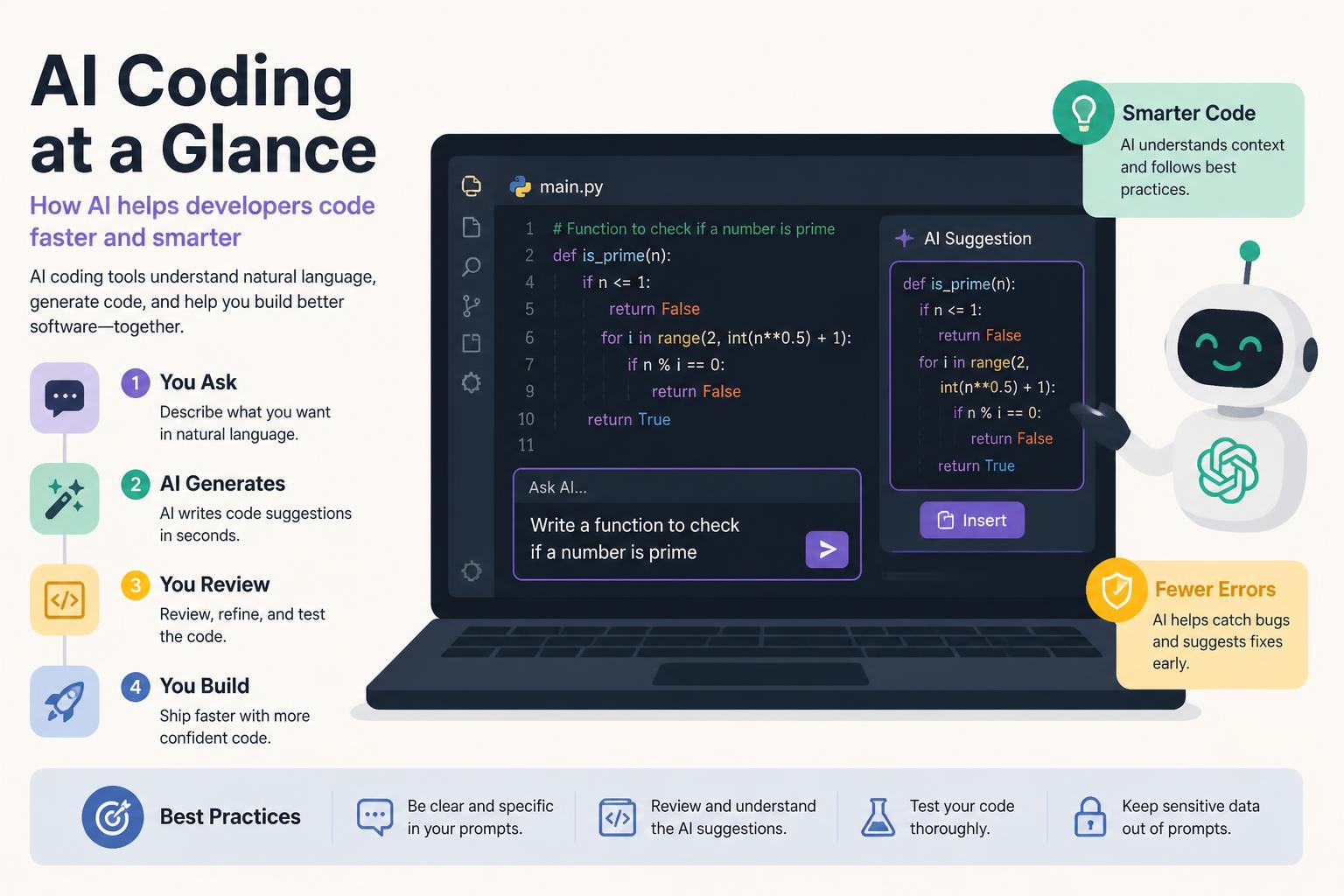
Open a file (or create example.js). Press Cmd+K, type a specific prompt using that formula, press Enter. Code appears inline. You can Accept, Reject, or Retry.
—
Step 4: Review AI Code Before Accepting It
The mistake: accepting AI-generated code without reading it. Then spending an hour debugging why the app broke.
AI makes two kinds of errors. It hallucinates APIs—invents function names or libraries that don’t exist. And it makes logic errors—code that runs but does the wrong thing.
Before accepting:
- Read the generated code line by line
- Check that imported libraries exist in your project
- Look for edge cases (null input? empty array?)
- Test it before committing
If you can’t explain what every line does, don’t accept it. AI should speed you up, not create debt.
—
Step 5: Use the Chat Panel for Complex Questions
The inline prompt (Cmd+K) works for quick edits. For bigger tasks—refactoring, debugging a weird error, asking “why isn’t this working?”—use the chat panel.
Press Cmd+L to open it (or click the chat icon). Type your question. Include context: paste error messages, describe what you expected versus what happened. Let the AI ask follow-ups if it needs to.
Example:
You: “I’m getting ‘Cannot read property of undefined’ in UserProfile.tsx line 34. The user object should have a name field but it’s undefined.”
AI: “Can you share the code where you’re fetching the user object?”
You: [paste the fetch function]
AI: “The issue is that you’re not awaiting the fetch call. Here’s the fix: [generates corrected code]”
The chat panel is where debugging actually happens.
—
Step 6: Use @-Mentions to Control Context
Cursor’s best feature: @-mentions. They let you tell the AI exactly what files, functions, or docs to look at.
@filename.js— include a specific file@foldername— include all files in a folder@docs— search official documentation@web— search the web for current info@codebase— search your entire project
Example: You’re building a new API endpoint and want it to match existing ones.
Open chat (Cmd+L). Type: “@api/users.js Create a new endpoint for posts following the same pattern as users.”
The AI reads users.js and generates posts.js that matches your style. Not generic examples. Your patterns.
Use @docs when working with unfamiliar libraries. Example: “@docs react-query How do I invalidate a specific query after a mutation?”
—
Step 7: Generate Entire Features with Composer
For multi-file changes—adding a feature that touches several components, routes, and tests—use Composer.
Press Cmd+Shift+I. Describe the feature in plain language. Specify which files should be created or modified. Review the plan before the AI executes.
Example: “Create a comment system for blog posts. Add a Comment model, comments API route, CommentList component, and CommentForm component. Use the same auth pattern as the existing Posts feature.”
You’ll see a plan listing every file that will be created or changed. Review it, then click Apply.
Always review multi-file changes carefully. AI can introduce breaking changes if you’re not specific about constraints.
—
Step 8: Teach the AI Your Coding Style
AI tools learn from the code you write. But you can speed this up.
Create a .cursorrules file in your project root. Write your coding conventions in plain English.
Example:
- Use functional components, not class components
- Prefer named exports over default exports
- Always include TypeScript types
- Use Tailwind for styling, not CSS modules
- Write tests for any new feature
- Follow Airbnb style guide for JavaScript
Save this file. Cursor follows these rules in every generated code block. No need to repeat yourself.
—
Step 9: Use AI for Refactoring (Not Just Writing)
Most people use AI to write new code. But refactoring is where it shines.
Tasks AI handles well:
- Converting class components to functional components
- Adding TypeScript types to JavaScript files
- Extracting repeated logic into utility functions
- Renaming variables consistently across files
- Adding error handling to async functions
Select a block of messy code. Press Cmd+K. Type: “Refactor this to be more readable. Extract magic numbers to constants, add comments, and improve variable names.”
Cleaner code. Same functionality. Easier to maintain.
—
Step 10: Debug with AI (Faster Than Stack Overflow)
Old workflow: Google the error, read Stack Overflow, try five solutions, hope one works.
New workflow:
- Copy the error message
- Open chat (
Cmd+L) - Paste the error and code
- Apply the fix
Example:
You: “Getting ‘Hydration mismatch’ error in Next.js. Here’s my component: [paste code]”
AI: “You’re using Date.now() which generates different values on server and client. Use a useEffect to set the date only on the client, or pass the date as a prop from the server.”
Specific solutions, not generic advice. If the first one doesn’t work, tell the AI. It’ll suggest alternatives.
—
Step 11: Write Tests with AI (Yes, Really)
Nobody likes writing tests. AI doesn’t mind.
Open the file you want to test. Press Cmd+K. Type: “Generate unit tests for this component using [your test framework].”
You’ll get a test suite covering main functionality, edge cases, and error states. Review it—AI sometimes misses important cases—but it handles most of the boilerplate.
Ask the AI to explain what each test checks: “Explain what this test is validating and why it matters.”
—
Step 12: Build Your AI Coding Workflow
Now that you know the mechanics, here’s how to integrate AI into daily work:
For new features:
Write a detailed spec in comments or chat. Let AI generate the initial implementation. Review, test, refine. Ask AI to write tests.
For debugging:
Paste the error and relevant code into chat. Apply the fix. Ask “Are there other places in the codebase where this same bug might exist?”
For refactoring:
Select messy code, ask AI to improve it. Review the changes. Ask if the refactor introduced bugs.
For learning:
When you don’t understand code, select it and ask “Explain this code like I’m five.” Ask follow-up questions until it clicks.
—
What You Just Learned
You can now:
- Set up an AI coding tool and configure it
- Write prompts that generate usable code
- Review AI code for hallucinations and logic errors
- Use context controls to get better outputs
- Refactor, debug, and test with AI
Use Cursor every day for a week. The real learning happens when you encounter actual problems and learn to communicate them. The tool gets better the more you use it. So do you.
—
Troubleshooting Common Issues
The AI keeps generating code that doesn’t match my project style
Create a .cursorrules file with your conventions. The AI follows it automatically.
AI-generated code has bugs
Always review before accepting. AI is fast but needs oversight. Run tests before committing.
The AI doesn’t understand what I want
You’re probably being too vague. Use the prompt formula: [Action] + [What] + [Constraints] + [Context]. Be specific.
Cursor says I’m out of free requests
The free tier has a monthly limit. Upgrade to Pro ($20/month), wait for the limit to reset, or use Claude/ChatGPT as a fallback.
AI suggests libraries or functions that don’t exist
This is hallucination. Always verify that imports and APIs exist before using them. Google the function name or check the library docs.
—
FAQ
Do I need to know how to code to use AI coding tools?
Yes. AI amplifies your existing skills. It doesn’t replace them. You need to understand code well enough to review what the AI generates and catch errors. If you’re learning, AI can help, but don’t skip fundamentals.
Is Cursor free to use?
Cursor has a free tier with limited requests per month. Enough for this tutorial and light usage. For daily professional use, the Pro plan is $20/month.
Can I use AI coding tools with languages other than JavaScript?
Yes. Python, JavaScript, TypeScript, Go, Rust, Java, C++, and more. The techniques here apply to any language.
Will AI replace developers?
No. AI handles boilerplate, speeds up implementation, assists with debugging. You still design systems, make architectural decisions, and review code. Think of it as having a very fast junior developer on your team.
What if I don’t use Cursor? Can I follow this guide with GitHub Copilot or ChatGPT?
Yes. The principles apply to all AI coding tools. The keyboard shortcuts and features differ, but the workflow is the same.
How do I avoid becoming dependent on AI and losing my coding skills?
Use AI for speed, not as a crutch. When AI generates code you don’t fully understand, ask it to explain. Regularly solve problems without AI. Think of it like a calculator—useful for speed, but you should still understand the math.
—
Next Steps
Use it daily. The skill compounds. After a month, you’ll wonder how you coded without it.
Learn your tool’s advanced features. Cursor has agents, Claude has projects, Copilot has workspaces. Explore them.
Join communities. r/cursor, AI coding Discord servers, Twitter. People share advanced techniques there.
AI coding is still new. The developers who figure it out now will have an edge. You just built the foundation.