How to Use AI Video Tools in 2026
FTC note: Some links earn us a commission.
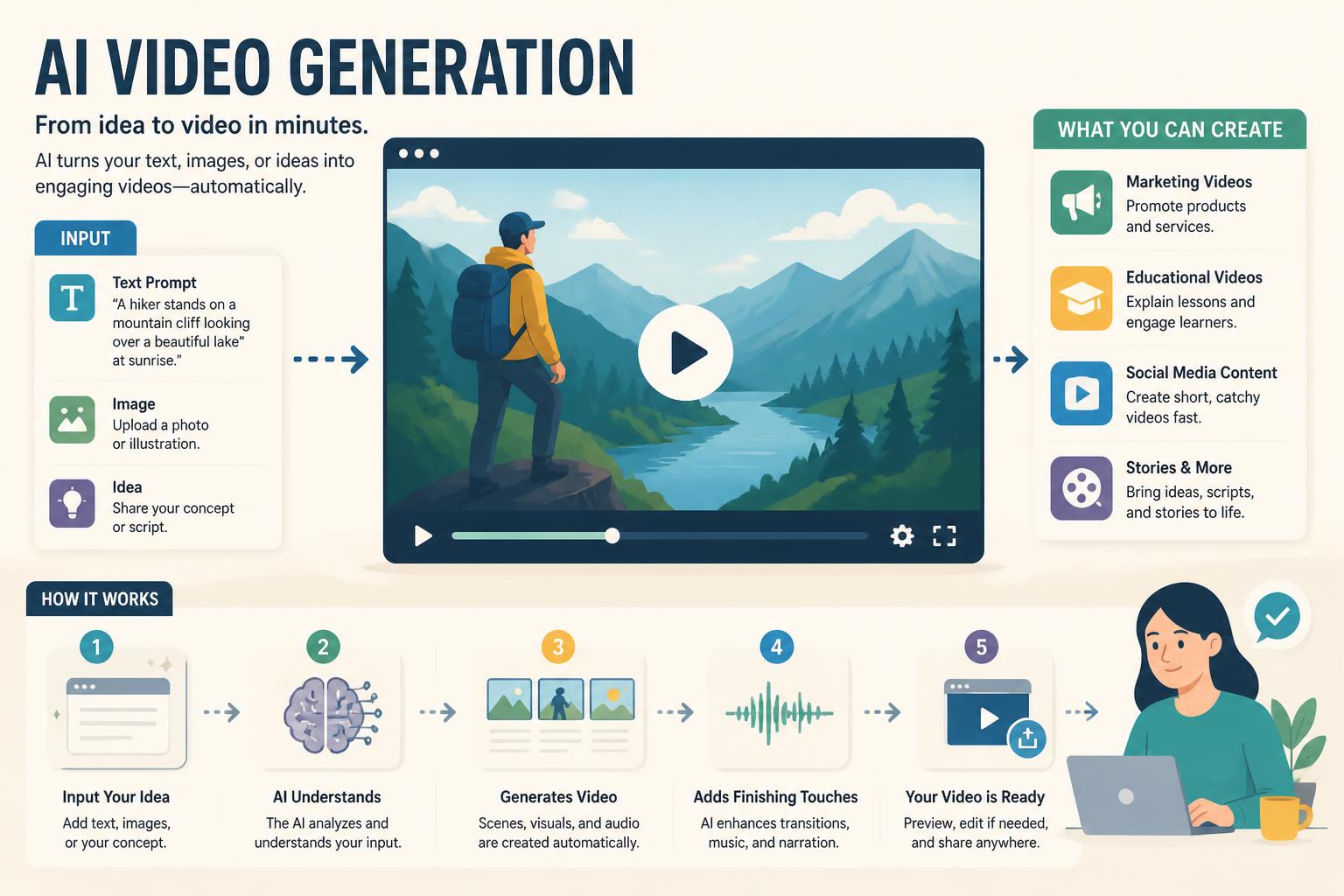
You can now type a description and get back video. It takes a few minutes, no editing software, no camera. The quality depends on which tool you use and how you write your prompt.
This covers text-to-video, image animation, and combined-input workflows. If you’re making stuff for YouTube, social, or client projects, I’ll walk through what actually works and what doesn’t.
What you need:
- Account with an AI video tool (I’ll recommend a few)
- A description of what you want
- 15–30 minutes for your first one

Three Ways to Do This
You can generate from text alone, animate a still image, or combine multiple inputs.
Text-to-video is straightforward. You describe what you want and the AI makes footage from scratch. Works well for concepts that don’t exist yet—surfing dogs, futuristic cities, weird abstract stuff.
Image-to-video starts with a photo or illustration and animates it. The AI adds motion and camera movement while keeping the original look. This is better when you need character consistency or want control over the starting frame.
Multi-modal input means combining text, reference images, audio cues, and style samples in one generation. More setup, but you get way more control over the result. This is replacing simple text prompts for professional work because you’re less likely to get something random.
Pick a Tool
Quality varies. A lot.
Google Veo 3.1 has the best audio I’ve tested and makes footage that’s hard to tell from real clips. It’s expensive.
SeaArt 2.0 handles physics well. Objects move naturally—people walk correctly, fabric behaves, water flows instead of morphing. If your video needs realistic motion, use this.
Kling 3.0 is cheaper than the others and still solid. Best price-to-quality ratio right now if you’re not trying to impress a client with deep pockets.
Runway Gen-4.5 works well for artistic stuff that isn’t supposed to look photorealistic. I use it when I want something that looks intentionally stylized.
Adobe Firefly is trained only on licensed content, which makes it safer if copyright matters. If you’re doing work for a brand that’ll panic about legal risk, this is the boring safe choice.
→ Get started with Kling 3.0 →
Set Up Your Account
Create an account, find the dashboard, pick your generation method. Most tools have the same basic layout: prompt box, settings panel, preview window.
Set your resolution, length, aspect ratio.
Free plans cap length at 5–10 seconds and limit how many you can make per month. Paid plans remove the caps and give you higher resolution.
Write Your First Prompt
Structure matters more than you’d think.
I use this format: subject, action, environment, style, camera movement.
Example: “A chef chopping vegetables on a wooden cutting board in a bright modern kitchen, cinematic lighting, slow dolly zoom”
Break it down:
- Subject: the chef
- Action: chopping vegetables
- Environment: bright modern kitchen
- Style: cinematic lighting
- Camera: slow dolly zoom
Generation takes 2–5 minutes for a 5-second clip.
Camera keywords like “dolly zoom,” “tracking shot,” “crane up” work across most tools. The more specific you are, the less you’re rolling the dice.
Keep Characters Looking the Same
Making one person look identical across multiple shots used to be almost impossible. In 2026 it’s fixed with identity-lock systems.
Upload a reference image of your character. Turn on character lock or identity preservation (name depends on the tool). Write your prompt. Generate clips using the same locked reference.
Seedance 2.0 does this automatically. Upload once and every generation keeps that exact face and clothing.
This is the difference between “I made a video” and “I made a video where the protagonist doesn’t morph into three different people.”
Add Audio
A lot of tools now generate audio with the video. You don’t need to mess with syncing voiceover separately.
Google Veo 3.1 does native dialogue. Include it in your prompt with quotes and specify voice characteristics:
“A woman in her 30s with a British accent saying ‘Welcome to the future of content creation,’ confident tone, standing in a tech office”
If your tool doesn’t do audio, use ElevenLabs or similar to generate voiceover, then sync in post. Less convenient but it works.
Lip sync is usually automatic when the tool generates both video and dialogue together.
Control the Camera
Camera movement makes AI video look intentional instead of like you hit a button and hoped.
Keywords that work:
- Static shot (no movement)
- Pan left/right (horizontal rotation)
- Tilt up/down (vertical rotation)
- Dolly in/out (toward or away from subject)
- Tracking shot (follows the subject)
- Crane up/down (vertical camera move)
- Orbit (circles around subject)
Add camera direction at the end of your prompt. Be specific about speed: “slow dolly in” vs “fast dolly in.” You can combine them: “tracking shot with slow pan right.”
Example: “Sports car driving through mountain road at sunset, cinematic, slow tracking shot with crane up”
Kling lets you upload a reference image showing the exact angle you want. The AI matches it. Saves a lot of trial and error.
Use Multiple Inputs for Better Control
If you’re doing brand work or anything that needs to look consistent with existing content, combine inputs.
Upload a style reference (the visual aesthetic you want), a composition reference (framing and layout), write your text prompt, add audio or music references if the tool supports it, set your parameters, generate.
You get something that looks like it belongs in your library instead of generic AI slop.
Example: making a product demo for skincare.
- Style reference: photo from your brand’s existing ads
- Composition reference: screenshot of the product angle you need
- Prompt: “Smooth pan across moisturizer bottle, water droplets on glass, soft natural lighting”
- Result: video that actually matches your other content
Your First Try Won’t Be Perfect
Review what’s wrong. Adjust the part of your prompt that needs fixing—don’t rewrite the whole thing. If your tool has a remix feature, use it (keeps most of the clip, tweaks part of it). Generate 3–4 versions and pick the best.
Common problems:
- Physics look off: add “realistic motion” to your prompt
- Too generic: reference a specific camera (“shot on Arri Alexa”) or aesthetic (“Wes Anderson style”)
- Jerky camera: add “smooth” or “cinematic”
- Subject doesn’t match: switch to image-to-video
By the third attempt you should have something usable.
Export and Extend
Pick 1080p or 4K if available, export as MP4, download. Watch it before you publish—compression happens during export and sometimes it looks worse than the preview.
Most tools cap clips at 5–10 seconds. For longer videos, generate multiple clips and stitch them together in an editor. Add transitions so it doesn’t feel choppy.
When Things Break
Video looks blurry: You’re on a free plan with lower resolution. Upgrade or switch to Kling, which has decent free quality.
Subject morphs halfway through: Use identity lock and reference images. Text-to-video alone can’t keep complex subjects stable.
Camera doesn’t move right: Check the docs for your tool. Camera syntax varies slightly between platforms.
Copyright warnings: If this is commercial, check the license. Adobe Firefly is trained on licensed stuff and safer. Tools trained on scraped web data are riskier.
Generation fails: Your prompt is probably too complex. One subject, one action. Add complexity later.
What You Just Built
You have a working AI video. You know how to control the camera, keep characters consistent, add audio, and troubleshoot when it breaks.
This is the same workflow people are using to make money with this stuff in 2026. The gap between amateur and professional isn’t the tool—it’s knowing how to prompt, when to iterate, and what’s worth fixing.
If you want to go deeper: learn advanced camera keywords, experiment with style references for brand matching, combine multiple tools into a real pipeline.
→ Try Kling 3.0 and make something →
Questions People Ask
Do I need to pay?
No. Free tiers exist with limits on length and monthly generations. You can make decent stuff for free. Paid gets you longer clips, higher res, more credits.
How long does it take?
5-second clips take 2–5 minutes. Complex stuff can take 10–15 minutes depending on the tool and how busy the servers are.
Which tool should I start with?
Kling 3.0. Quality is good, interface is simple, not expensive.
Can I post these on YouTube?
Yes, but read the license. Most allow social. Some block commercial use on free plans. If you’re making ads or client work, Adobe Firefly is the safest bet.
How do I make it look real?
Use image-to-video instead of text-to-video. Add “realistic motion” and “natural physics” to prompts. Reference actual cameras. Tools with good physics scores (SeaArt is solid) help.
What’s multi-modal?
Combining text, images, audio, and style samples in one generation instead of just typing a description. More control, more consistent results. Standard for pro work now.
—
Tools mentioned:
- Kling 3.0 (good value, solid physics and audio)
- Google Veo 3.1 (best quality, expensive)
- SeaArt 2.0 (best physics)
- Adobe Firefly (copyright-safe)
- ElevenLabs (voiceover)