How to Choose AI Coding Tools in 2026: A Developer’s Step-by-Step Guide
FTC Disclosure: This article contains affiliate links. If you purchase through these links, we may earn a commission at no additional cost to you.
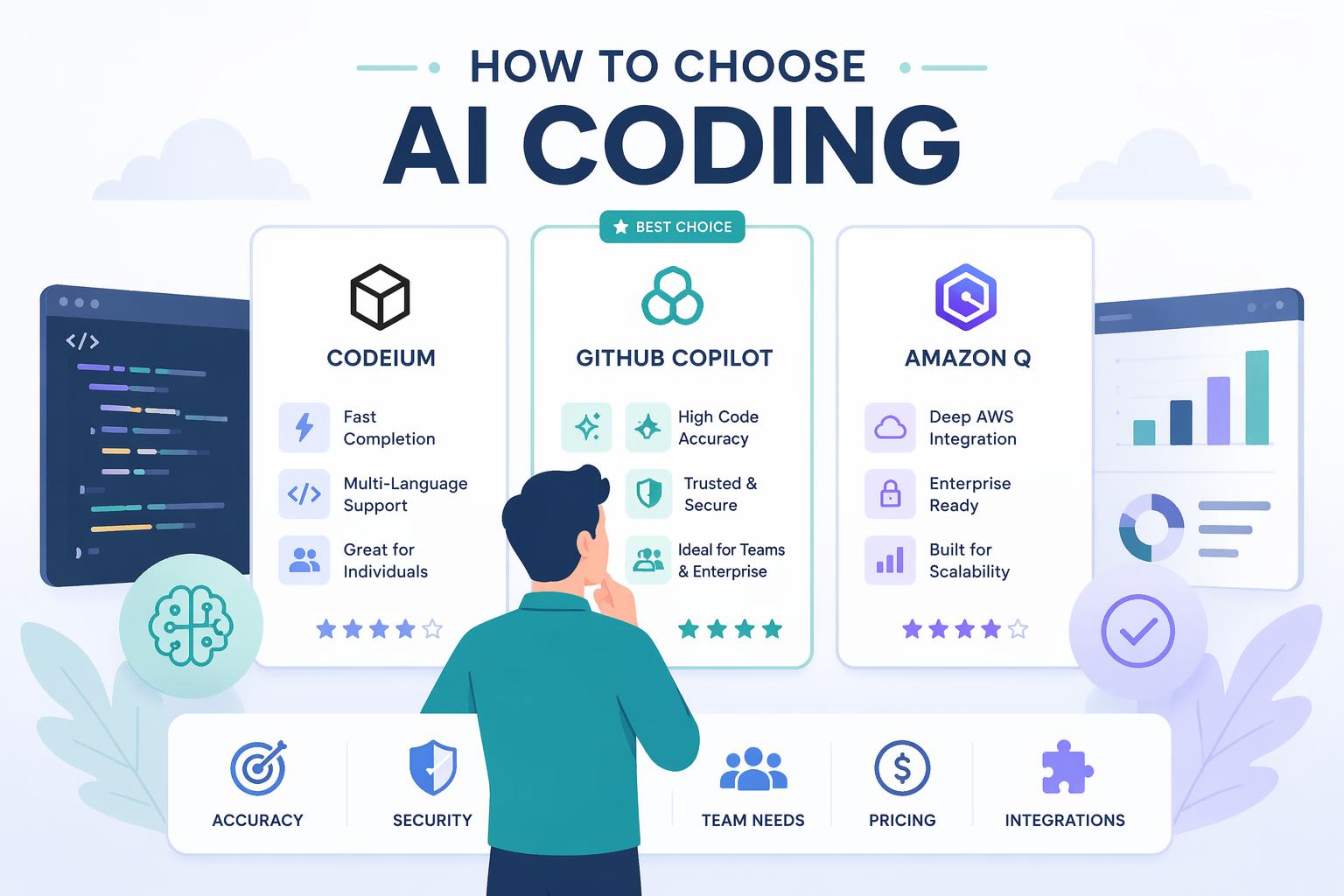
You’re staring at dozens of AI coding tools, each promising to change everything. GitHub Copilot? Claude Code? Cursor? Devin? The choice is overwhelming, and picking wrong means wasted money and lost time.
Here’s what I keep coming back to: AI won’t replace developers, but it’s widening the gap fast. Developers who pick the right tools for their needs ship faster. Those who don’t are falling behind.
By the end of this guide, you’ll know how to evaluate AI coding tools, match them to your workflow, and avoid paying for features you’ll never touch. You’ll have a framework that works whether you’re building side projects or shipping production code.
What you need:
- A clear sense of your main coding tasks (frontend, backend, refactoring, prototyping)
- Your budget (most developers spend $50-100 monthly)
- 20 minutes
—
Step 1: Identify Your Primary Use Case
Before comparing features and pricing, figure out what you’ll actually use an AI coding tool for. This one question narrows your options dramatically.
What do you spend most of your coding time doing?
Common answers:
- Full-stack application development (building complete features from database to UI)
- Rapid prototyping and demos (validating ideas quickly)
- Refactoring and code cleanup
- Learning new frameworks
- Complex workflow automation
Write down your top two. These drive every decision after this.
If you can honestly say “I spend 50% of my time prototyping and 50% building production systems,” you might need two tools. Most developers in 2026 use a combination rather than forcing one tool to do everything.
—
Step 2: Determine Your Integration Preferences
AI coding tools fall into three categories based on how they fit into your workflow. Understanding which one matches you eliminates entire classes of tools immediately.
The three models:
- Editor-integrated (GitHub Copilot, Cursor)
– Live suggestions as you type
– Best for developers who spend most time in their IDE
– Trade-off: less aware of your full codebase
- Command line and terminal-first (Claude Code, Aider)
– Deep awareness of your entire codebase
– Best for developers comfortable with CLI workflows
– Trade-off: steeper learning curve, less visual
- Autonomous agents (Devin, Lovable.dev)
– Handles complete tasks with minimal intervention
– Best for prototyping, demos, or when you need speed over control
– Trade-off: less predictable, harder to fine-tune
Think about your current workflow:
- Do you live in VS Code? Go editor-integrated.
- Do you prefer terminal commands and Git workflows? Go CLI.
- Are you building quick prototypes or validating ideas? Try autonomous agents.
Don’t try to change your entire workflow to accommodate a tool. Find a tool that fits how you already work.
—
Step 3: Evaluate Context Awareness Requirements
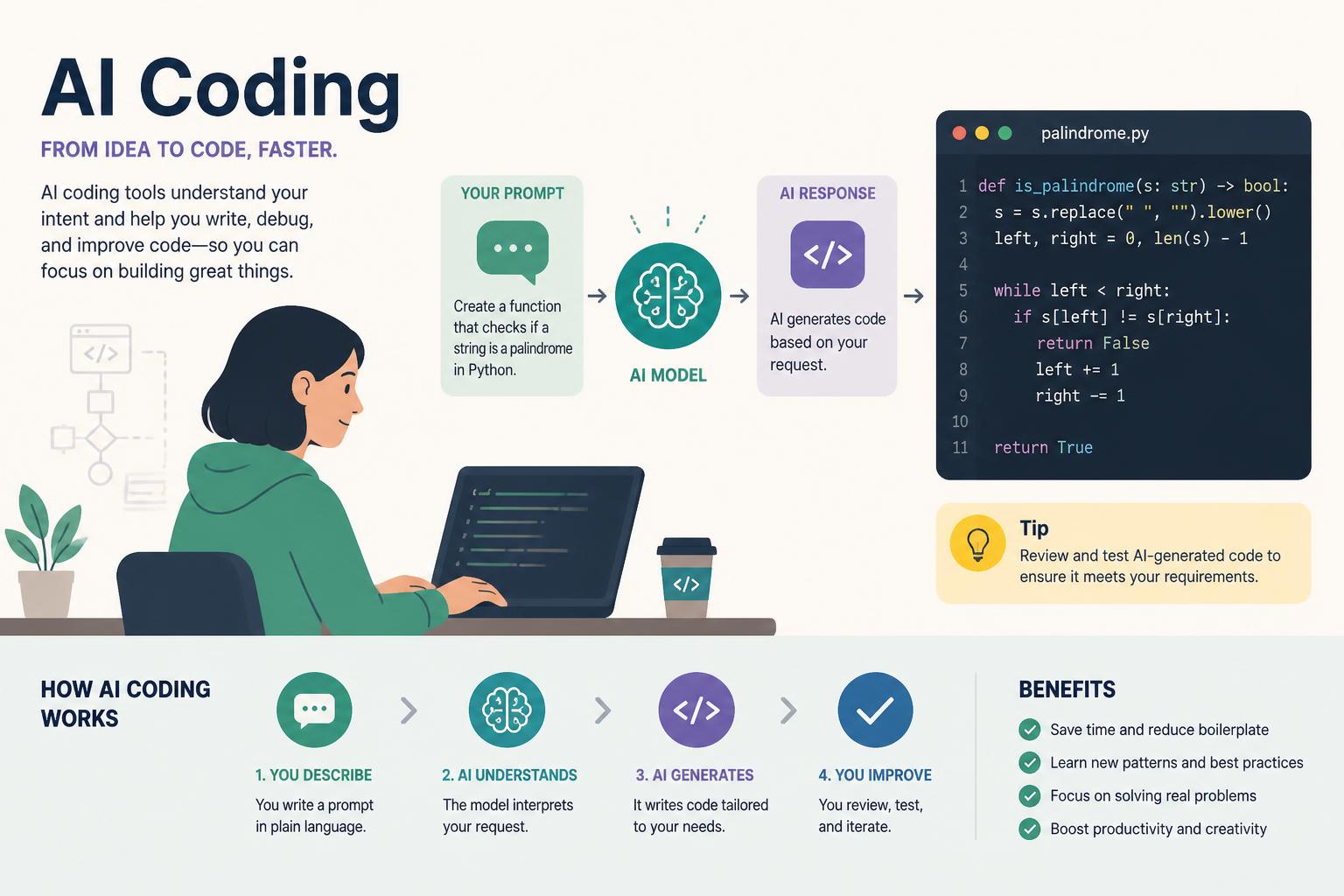
Context awareness—how much of your codebase the AI can “see”—directly impacts code quality. This is where the differences between tools become obvious.
Questions:
How large is your codebase?
- Small projects (under 10 files): Most tools handle this fine
- Medium codebases (10-100 files): You need multi-file awareness
- Large codebases (100+ files): Deep context becomes essential
Do you work with proprietary or sensitive code?
- If yes, verify the tool doesn’t send code to third-party servers
- Look for on-premises or local processing options
- Check vendor security policies explicitly
How often do you refactor existing code vs. write new code?
- Frequent refactoring needs tools that understand your entire project structure
- New feature development can work with more focused, file-level tools
Developers testing these tools say deep context awareness is the differentiator for complex work. Tools like Claude Code excel here because they analyze entire repositories before making suggestions.
More context isn’t always better, though. For rapid prototyping, too much context slows down suggestions. Match the context level to your use case.
—
Step 4: Compare Code Generation Quality
Not all AI coding tools generate the same quality of code. Testing this before committing saves you from bad suggestions and debugging nightmares.
How to test:
- Pick a task you actually build regularly (not a toy example)
- Test the same task across 2-3 tools (most offer free trials)
- Evaluate on these criteria:
– Does it follow your language and framework conventions?
– Does the code actually run without modifications?
– Is it production ready or just demo quality?
– Does it include proper error handling and edge cases?
What developers say:
Based on 2026 testing:
- Cursor generates scalable backend APIs for full-stack applications
- Claude Code excels at advanced refactoring with deep context
- V0 by Vercel converts designs to React components quickly
- Lovable.dev focuses on rapid prototyping with user-centered design
Don’t trust marketing. Test with your actual code and your actual problems.
The “best AI model for code generation” varies by task. A tool might excel at frontend work but struggle with backend logic. Test across your specific use cases.
—
Step 5: Check Git Workflow Compatibility
If you work in teams or use version control (and you should), your AI tool must work smoothly with Git. Poor Git integration creates more problems than the AI solves.
Compatibility checks:
Does it support branch-based workflows?
- Can you use it across multiple branches simultaneously?
- Does it understand branch context and history?
- Tools like Aider specifically support Git integration and parallel agent workflows
How does it handle merge conflicts?
- Can it help resolve conflicts intelligently?
- Does it create clean, reviewable commits?
Team collaboration:
- Can multiple developers use it on the same codebase?
- Does it create consistent code style across team members?
- What happens when two team members use it on related files?
For developers using parallel agent workflows with Git worktrees (increasingly common in 2026), verify the tool can handle this complexity.
—
Step 6: Calculate Your True Monthly Cost
The sticker price isn’t your real cost. Factor in the AI models you’ll need, additional services, and hidden fees.
Cost components:
- Tool subscription (the base monthly fee)
- AI model access (many tools require separate API access to Claude, GPT-5, or other models)
- Usage limits (what happens when you hit monthly caps?)
- Team seats (if you’re not coding alone)
Developers spending $50-100 monthly on AI models can see significant ROI through time savings. But that assumes you’re using the right tool for your needs.
Budget framework:
- $0-20/month: GitHub Copilot, limited model access—good for beginners or part-time projects
- $50-100/month: Full access to top models, professional tools—standard for full-time developers
- $100+/month: Multiple tools, team features, autonomous agents—for high-velocity shipping
Calculate your expected usage:
- How many hours per week will you code with AI assistance?
- What’s your time worth? (If AI saves you 5 hours per week and you bill at $50/hour, that’s $1,000/month in value)
If you’re saving 10+ hours per week, investing $100/month is obvious.
—
Step 7: Test with a Real Project
Free trials are worthless if you test with toy problems. Use a real project—ideally one you’re actively working on.
Testing process:
- Pick a current feature or bug (something you need to build this week anyway)
- Use the AI tool as your primary coding method (don’t just dabble, commit to it)
- Track these metrics:
– Time to complete the task vs. your normal speed
– Number of AI suggestions you accepted vs. rejected
– Bugs or issues caused by AI-generated code
– Frustration level (honest assessment)
- Test edge cases:
– How does it handle complex business logic?
– What happens when you ask it to refactor poorly-written code?
– Can it work with your specific frameworks and libraries?
Set a threshold:
- If it saves you less than 20% of your time, it’s not worth the cost and context switching
- If you reject more than 50% of suggestions, the quality isn’t there
- If it creates more bugs than it prevents, the tool isn’t ready for your use case
Some tools shine with specific frameworks. If you’re primarily a React developer, V0’s design-to-React conversion might be transformative. If you work in less common languages, verify support explicitly.
—
Step 8: Verify Security and Privacy Policies
Before committing proprietary code to any AI tool, understand exactly where your code goes and who can see it.
Security questions:
Where is your code processed?
- On-device or local processing
- Vendor servers
- Third-party AI providers
Is your code used for training?
- Many AI tools explicitly state they won’t train on your code
- Others have unclear policies
- Get this in writing before using with proprietary projects
What data is logged?
- Code snippets
- Full files
- Project structure
- None of the above
For proprietary or client work:
- Look for SOC 2 compliance
- Check if the vendor offers on-premises deployment
- Verify they have enterprise security features
If you’re working on open source projects, this matters less. For startup or client work, security policies can be a dealbreaker.
If a vendor’s security page is vague or doesn’t exist, that’s your answer.
—
Step 9: Plan Your Multi-Tool Strategy
Most experienced developers in 2026 don’t use just one AI coding tool—they use a combination optimized for different tasks.
Common setups:
The specialist stack:
- Editor-integrated tool (GitHub Copilot) for day-to-day coding
- CLI tool (Claude Code) for complex refactoring
- Autonomous agent (Lovable.dev) for rapid prototyping
The one tool plus fallback approach:
- Primary tool for 80% of work
- Backup tool for when the primary one fails or isn’t suited to the task
When to use multiple tools:
- Your primary tool doesn’t handle a specific use case well
- You work across very different types of projects (prototypes vs. production)
- You’re on a team where different developers prefer different tools
When one tool is enough:
- You have a single, well-defined use case
- Budget constraints make multiple subscriptions impractical
- You’re still learning and adding complexity would slow you down
Developers are increasingly using parallel agent workflows with Git worktrees alongside low-code and no-code tools for greater efficiency.
—
Step 10: Make Your Decision and Set a Review Date
You’ve evaluated options, tested with real projects, and calculated costs. Now commit to a decision—but build in a review checkpoint.
Making the choice:
- Rank your top 3 tools based on:
– How well they match your primary use case (from Step 1)
– Code quality in your tests (from Step 4)
– Integration with your workflow (from Step 2)
– Cost vs. value (from Step 6)
- Pick your primary tool (the one that scored highest across these criteria)
- Identify your fallback (the second-place option, in case your primary choice doesn’t work out)
- Set a 30-day review date (calendar it right now)
At your 30-day review, ask:
- Am I actually using this tool daily?
- Has it saved me the time and money I expected?
- Would switching to my fallback option be better?
- Have any new tools launched that I should test?
The AI coding tool space in 2026 is changing fast. What’s best today might not be best in six months. Stay flexible.
—
What You’ve Just Built
You now have a systematic way to choose AI coding tools based on your specific needs—not marketing hype or what works for someone else.
You’ve identified:
- Your primary use case and integration preferences
- The context awareness level you actually need
- How to test code quality meaningfully
- Your real monthly cost and expected ROI
- Whether you need one tool or a specialized stack
Next steps:
- Start your free trial with your top-ranked tool this week
- Test it on a real project immediately (don’t wait)
- Set that 30-day review date in your calendar
- Join developer communities discussing AI coding tools to stay current
The developers who ship faster in 2026 aren’t necessarily the ones using the newest or most expensive AI tools. They’re the ones who matched the right tool to their workflow and mastered it.
—
Troubleshooting Common Issues
“Every tool I test seems equally good or bad—I can’t decide”
You’re testing with problems that are too simple. Pick a genuinely complex task from your real work—something that would take you several hours. The differences will become obvious.
“The tool works great for demos but fails on production code”
You’re testing an autonomous agent platform (like Lovable.dev or Bolt.new) which are designed for rapid prototyping, not production systems. Switch to an editor-integrated or CLI tool for production work.
“My team wants different tools than I do”
This is fine—as long as the tools produce consistent code quality and integrate with your Git workflow. Consider standardizing on code style and review processes rather than forcing everyone to use identical tools.
“I can’t justify the cost to my manager”
Track your actual time savings for two weeks with hard numbers: “I built feature X in 4 hours instead of the usual 8.” Convert that to dollar value based on your rate. If you can’t show clear time savings, the tool might not be right for your work.
—
Frequently Asked Questions
Do I need a paid plan or can I use free tiers?
Most free tiers are fine for learning and side projects. For full-time professional work, paid plans ($20-50/month) provide faster responses and higher usage limits that justify the cost through time savings.
Can AI tools replace human programmers in 2026?
No. Developers actively using these tools say AI won’t replace developers but will widen the skill gap between those who effectively use AI and those who don’t. The tools augment your skills—they don’t replace them.
Which AI coding tool is best for beginners?
Editor-integrated tools like GitHub Copilot have the gentlest learning curve because they work within your existing IDE. Start there, then graduate to more powerful CLI tools once you’re comfortable.
What’s the best AI tool for large codebases?
Tools with deep context awareness like Claude Code excel with large, complex projects because they can analyze entire repositories. Avoid tools that only consider the current file when working on codebases with 100+ files.
How much should I budget for AI coding tools in 2026?
Based on current data, developers spending $50-100 monthly on AI models can see significant ROI. Your exact budget depends on your use case, but this range covers most professional needs.
Are there AI coding tools that work from the command line?
Yes. CLI tools like Claude Code and Aider are designed for terminal-first workflows. These tools often provide deeper context awareness and better Git integration than editor alternatives.
—
Related Resources
Want to dive deeper into specific tools?
- Compare the full feature sets of Cursor vs. Claude Code vs. GitHub Copilot
- Learn advanced workflows like parallel agent development with Git worktrees
- Explore when to use low-code and no-code AI tools alongside traditional coding tools
Building a startup or shipping products fast?
- Read case studies of developers using AI tools in production
- Learn how to structure development workflows that maximize AI assistance
- Discover which tasks to delegate to AI and which to handle manually
The right AI coding tool isn’t the newest or most expensive. It’s the one that fits your workflow, budget, and actual coding tasks. Use this framework to make that choice confidently, then commit to mastering it.